
Show
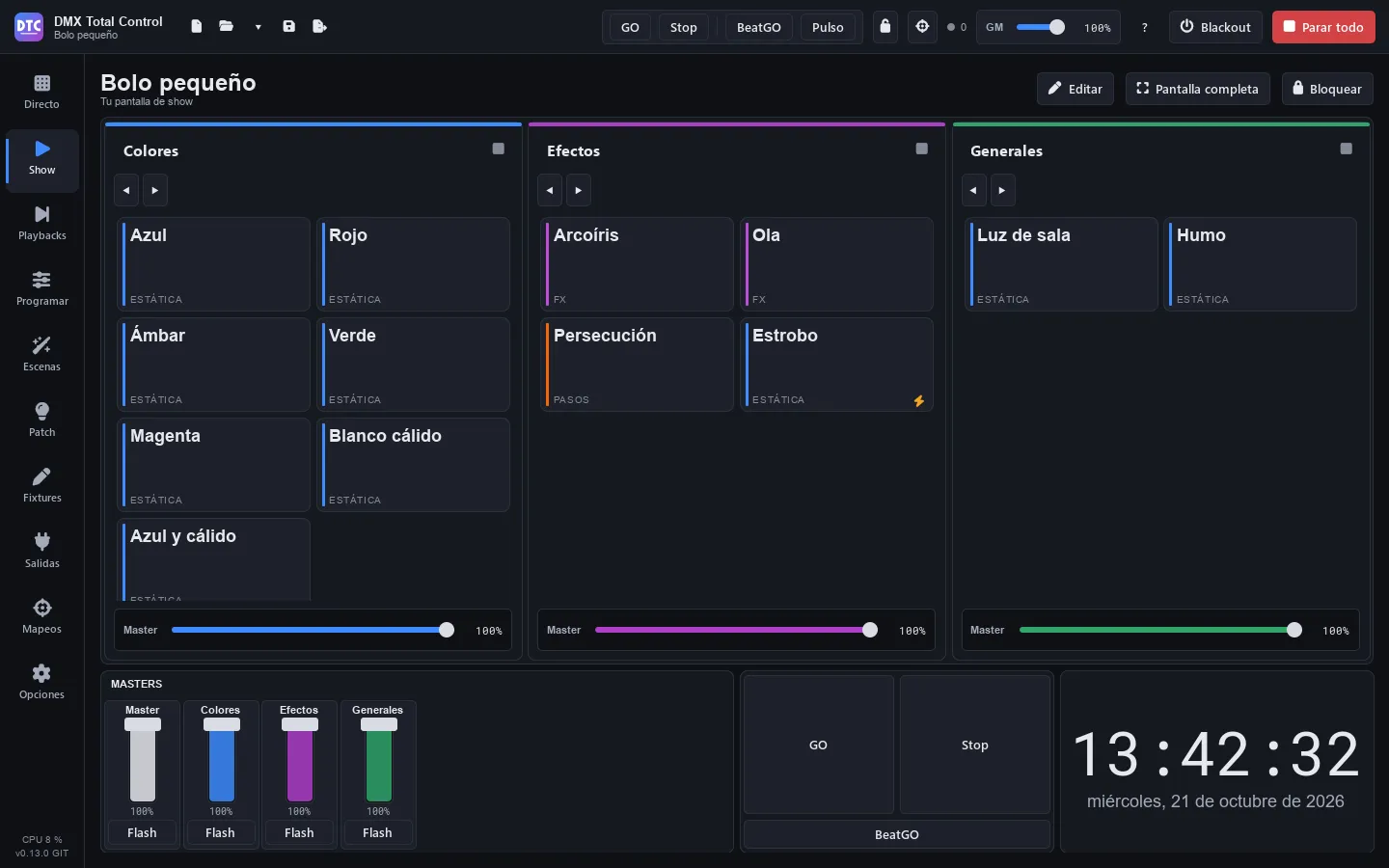
The Show page (F2) is your operating screen: you build it yourself, to suit you, with buttons, faders, dials, groups, playbacks, a clock, notes… It is designed for touch screens, to be left in full screen during the show and to be used from your phone too with the remote control. It is saved with the show.
A SHOW has pages. Each page is made of sections that fill the screen. Each section can be split into two halves, side by side or one above the other, as many times as you like, and each section shows one thing: a table of buttons, a table of faders, a group, a clock…
Getting started
Section titled “Getting started”With a new show the page is empty and offers two buttons:
- “New page”: creates a page with a table of buttons and enters edit mode.
- “Start from my groups”: creates the “Groups” page with all your Live groups at the top and, below them, a “Masters” fader table (the grand master and the masters of the first groups), a Rhythm section and a clock. It only appears if you already have groups.
Edit mode
Section titled “Edit mode”Press “Edit” to build the screen and “Done” to use it again. In edit mode:
- Click a section to select it (in a table, one of its cells or its label at the top right). Its properties appear in the “Properties” panel on the right.
- When the mouse is over a section, and on the selected one, a label with its type and three buttons appears at its top right: split into two halves side by side, split one above the other and remove this section (in a section with a title, they are in its title bar). The same ones are in the properties: “Side by side”, “Top and bottom” and “Remove section”.
- The sections keep their height: they don’t get a bar while editing. With the properties panel, they only get narrower down to the width where their tables fit without scrolling; if they don’t fit that way, the page scrolls sideways with the bar at the bottom (at most it is as wide as without the panel).
- Drag the divider between two halves to change their size. It snaps to quarters, thirds and halves.
- An “Empty” section shows buttons with all the types: click one to choose what it shows. If the section is small and they don’t fit, a single “What it shows ▾” button holds the list.
Section types
Section titled “Section types”| Type | What it shows |
|---|---|
| Buttons | A table of buttons (columns × rows). |
| Faders | A row of faders. |
| A group | A Live group with big buttons. |
| All the groups | All the Live groups, side by side. |
| Playbacks | The playbacks of the Playbacks page, with their GO, their buttons and their fader. |
| Live mixer | The mixer of Live. |
| Clock | The time, with optional seconds and date. |
| Timer | A stopwatch or a countdown. |
| Rhythm: GO and Stop | Big GO and Stop, like the ones in the top bar (they change what the scene buttons do), and BeatGO. The buttons of scenes with steps, of cuelists or of FX at “BPM of the show” hold their rhythm bar. |
| Notes | A text of your own, at the size you want. |
| Playing now | What is playing, with a button to stop it. |
| Dials and wheels | A table of dials or endless wheels. |
| Colour wheel | A wheel to give colour to a fixture group. |
| XY grid (pan and tilt) | An area to move moving heads. |
| Image | An image (a logo, a plan…). |
| DMX levels | The 512 channels of a universe, live. |
| Empty | Nothing (in edit mode, the list of types). |
Section properties
Section titled “Section properties”Depending on the type, the properties panel shows:
- Shows: the section type.
- Title: the text of its title bar. With no title, the section has no bar, in edit mode too.
- Background: the background colour of the section, among the same colours as the buttons, or ∅ (the one of the theme). It shows as a tint, when editing, when playing and on the phone, and the text on it stays readable.
- Colour of all the buttons (of all the faders, of all the dials): gives that colour to all of them in the table at once. Empty cells stay empty.
- Columns and Rows: the size of the table (up to 32). Buttons, faders and dials fill their cells. In a section too small for its table, the cells don’t shrink below what can be read and pressed: the table scrolls (with the wheel or by dragging).
- Fill with the scenes of a group (buttons): adds one button for each scene of that group in one go.
- Group (a group): which one it shows.
- Fixtures (colour wheel and XY grid): which fixture group they act on, or “All the fixtures with colour” / “All the moving heads”.
- Image (image): the file, and “Whole image” or “Fill the section”.
- Seconds and Date (clock).
- Counts (timer): “Up (stopwatch)” or “Down (countdown)”, with its Minutes.
- Text and Size (notes).
- Universe (DMX levels).
- Playback page, Playbacks and First playback (playbacks): see Playbacks in the SHOW.
Buttons
Section titled “Buttons”- Select a buttons section and click an empty cell (the one with the +).
- Press “Add a button here”.
- Choose its Action and whatever it needs (the scene, the group, the palette…).
The fastest way to fill a table is to drag scenes from the list under the properties (“Drag a scene onto a cell:”) onto the cells: each scene becomes a button that plays it.
Button actions
Section titled “Button actions”| Action | What it does |
|---|---|
| Play a scene | Plays the scene in its group (or on its own, if it is not in any group). Pressed several times in a row, it taps the rhythm of a scene with steps, of a cuelist or of an FX scene with FX at “BPM of the show”. With Stop in the top bar, it stops it. |
| Next scene of a group / Previous scene of a group | In one group, or in “All groups”. |
| Release a group | One group, or all of them. |
| Blackout | Turns the blackout on or off. |
| Stop all | Like the button in the top bar. |
| Tap tempo | Taps the show tempo (the one of the FX and of the scenes in BPM mode). |
| BeatGO (next division) | Like the BeatGO button in the top bar. |
| A palette | Applies the palette to the fixtures it was recorded with (“Its own fixtures”) or to a fixture group, as a live edit of the programmer: it stays over the scenes until you press again. |
| Cuelist GO / Cuelist back / Release a cuelist | On the cuelist you choose in Cuelist. |
| Go to a cue… | Jumps to the Cue you choose in that cuelist. |
A button brought from another page with Alt+click shows “A control on another page” and, below that, what it does (“Does: …”).
Button options
Section titled “Button options”- Label: its text. Empty (“Automatic”), it shows the name of the scene, the palette or the action.
- Behaviour (scene, blackout and palette): “Toggle: on / off” or “Flash: while pressed”. Flash buttons have a lightning bolt in the corner. On a scene, instead of “Toggle” it says “Press: follows GO / Stop”: it plays it or stops it as GO and Stop of the top bar say.
- Keyboard key: a key on the keyboard that presses it while you are on the Show page. The letter shows in the corner of the button.
- Colour, Icon and background Image (the image is dimmed while the button is off).
A button that is on is filled with its colour.
Moving and removing
Section titled “Moving and removing”In edit mode, drag a button, fader or dial to another cell of the same section to move it. To remove it, select it and press Del (or “Remove the button” / “Remove the fader” in the properties). Esc clears the selection.
Faders
Section titled “Faders”A SHOW fader can control several things at once. In its properties, under Controls, each element is one of these:
| Element | What the fader does |
|---|---|
| Play a scene (its intensity) | When you raise it from 0, the scene starts in its group; when you lower it to 0, it stops; in between it is its intensity. The fader adds its scene: it stops no other one (neither those of its group, even an exclusive one, nor those its “When it starts, release” mode would stop), and no other fader stops it, so you can raise several at once. While it is up, nothing else stops it: not the buttons of the group, not its own, not “Release groups”, not “Stop all”; only lowering it all the way (closing or changing the show stops it too). On the channels they share, with the same priority, the intensity is the highest one and the rest (colour, position…) comes from the last one you raised; lower it and the other one comes back. With different priorities, the higher one rules (Priorities). |
| Dimmer of a scene (does not play it) | Dims the scene whoever plays it (its group, a playback, a button, a super scene). It does not play or stop it. Its level is saved with the show and lasts as long as there is a dimmer fader or dial on that scene: if you remove it, the scene goes back to 100 %. |
| Master of a group | The master of that Live group. |
| Grand master | The GM in the top bar. |
| Dimmer of fixtures | The mixer dimmer of all the fixtures or of a fixture group. |
| Movement speed of moving heads | The speed of what moves the moving heads (all of them or those of a group): their pan/tilt FX, the programmer’s, and the steps that move them. ×0.1 at the bottom, normal (×1) in the middle, ×10 at the top; the fader shows the multiplier and a double click puts it back to ×1. An FX of pan/tilt and colour only changes the speed of the movement; a cuelist, the speed of its FX. The speed channel of the motors is not touched. |
| Speed of a scene | The live speed of that scene (×0.1 to ×10, like the movement speed). |
| Play a scene (its speed) | Like “Play a scene (its intensity)”, but the fader is its speed: all the way down the scene is stopped; when you raise it, it starts in its group and the travel is its speed, ×0.1 just above the bottom, ×1 in the middle and ×10 at the top. The text says “Stopped” while it is not playing, and the fader follows the scene if it is stopped or played from somewhere else. The speed is for that run only: once stopped, the scene goes back to the speed it had (its Live speed does not change). A double click puts it at ×1 (and plays it if it was stopped). Like the intensity one, it adds its scene to its group and holds it: several at once play together (also several scenes of the same exclusive group on one fader), and only lowering it all the way stops it. |
| BPM | The show tempo, from 20 to 300. |
The difference between the two scene elements: “Play a scene (its intensity)” is the scene itself, and it starts and stops it; “Dimmer of a scene (does not play it)” only dims it, also when it is played from somewhere else. You can use them together: with the dimmer at 50 % and the fader that plays it at 80 %, the scene comes out at 40 %.
Press “Add another element” to add another one and the bin icon to remove it. If you drag a scene onto a faders cell, a fader that plays it is created.
With Range, From … to … (from 0 to 100 %), the travel of the fader covers only that part of what it moves, on all its elements. For example, the speed of a scene from 20 to 80 %, or a dimmer from 0 to 60 % so that it never goes above that. With “From” greater than “to”, or with “Invert”, the fader works the other way round. A fader that plays a scene stops it at the end where the value is lowest (all the way down; all the way up if it is inverted), even if “From” is not 0.
The fader text shows the real value (the %, the BPM or, if it only controls speeds, the × multiplier), not where the fader is. If another control takes the value outside the range, the fader stays at the end. A fader that only controls speeds (of the movement or of scenes, one or several) goes back to ×1 with a double click.
Under each fader there is a “Flash” button: it takes the fader all the way up its travel while you press it and, when you let go, it gives back exactly what was there before. You remove it or add it with the “Flash button: full while pressed” switch in its properties.
Tip: a fader with “Master of a group” for your washes and “Dimmer of fixtures” for the audience PARs gives you a single fader to bring down the whole front.
Dials and wheels
Section titled “Dials and wheels”Dials control the same things as faders (the table above), with the same Range. Each dial can be:
- A dial: goes through its whole range in three quarters of a turn. A double click takes it to the start of its travel (the “From” value, or the “to” value if it is inverted); if it controls the BPM, to 90, or to the closest end of the range if 90 is outside it; if it only controls speeds, to ×1.
- An incremental wheel (“Incremental wheel: turns forever, each notch adds or removes a step”): it turns forever, and each notch adds or subtracts the Step (from 1 to 25 %) from wherever the value is. The step is a % of the value, not of the travel, and the wheel does not leave the range; turning it up with the scene stopped starts it at “From”. The arc around it shows the level.
To turn them, drag around the centre with the mouse or your finger, or up and down near the centre. Each step of the mouse wheel turns it a little (on an incremental wheel, one notch).
Colour wheel and XY grid
Section titled “Colour wheel and XY grid”- Colour wheel: touch the wheel to give hue and saturation (white in the centre) to the fixtures of the section, or press one of the swatches below it.
- XY grid (pan and tilt): drag the dot to move the heads. “Centre” takes them to the centre.
Both act as a live edit of the programmer: they stay over the scenes until you press “Release”, and then the scenes give the colour or the position again.
Groups and mixer
Section titled “Groups and mixer”The A group and All the groups sections show the Live columns with big buttons, their previous/next, their release button and their master, with no editing options. Live mixer shows the mixer strips fitted to the width.
Groups also fold here, with the arrow next to their name: in All the groups, the group becomes a narrow strip and the others share the width; an A group section that takes up one half of the page folds to its strip (or to its header, if the halves are one above the other) and the other half grows. Their scenes go on playing, and it is saved with the page (it does not depend on the folding in Live). In a locked SHOW, groups do not fold.
Playbacks in the SHOW
Section titled “Playbacks in the SHOW”The Playbacks section shows strips like the ones on the Playbacks page:
- Playback page: “Follow the current page” (the title bar shows ◀ the page name ▶ to change it) or a fixed page.
- Playbacks: how many you see (up to 20) and First playback: from which one.
- Three switches to show or hide the second button (Pause / Back), the third button (Flash) and the cue it plays and the next one.
In edit mode, drop a scene on a strip to put it on that playback.
Utilities
Section titled “Utilities”- Clock: the time and date of the computer.
- Timer: “Start” / “Pause” and “Reset”. In countdown it turns orange in the last minute and red when it reaches zero. It keeps counting even if you change page.
- Rhythm: GO, Stop and BeatGO.
- Notes: the text you write in its properties (the running order, reminders for the operator…).
- Playing now: what is playing, with the stop button next to each scene.
- DMX levels: a grid with the 512 channels of the chosen universe.
- Image: whole or filling the section.
- In edit mode, “+ Page” adds a page.
- Click the name of a page to see it. The page tabs show when there is more than one page.
- In edit mode, double-clicking a tab renames it; a right click opens “Rename…”, “Move left”, “Move right” and “Delete page…”. When you delete a page, it warns you how many sections and controls go with it: it cannot be undone.
Bringing any control to the SHOW
Section titled “Bringing any control to the SHOW”Alt+click on almost any control of the program copies it to the SHOW page you have open: a Live scene, the master of a group, a mixer button, the grand master, the blackout, a palette from Program, the buttons and the fader of a playback… The program tells you “Added to the SHOW, page “…””.
The new control goes to the first free cell of a buttons or faders table on that page. If there is none, an empty section becomes one (with the title “Touch”), or the last section is split.
Full screen and lock
Section titled “Full screen and lock”- “Full screen” (F11) and “Exit full screen”.
- “Lock”: hides the sidebar and leaves only the SHOW, with no editing or navigation. To leave, hold down “Unlock” (a bar fills up under the button). If there is a lock password, it asks for it.
Lock and kiosk mode
Section titled “Lock and kiosk mode”- In Options › “SHOW and lock”, “Open the SHOW full screen at startup” opens the SHOW directly. With “…and locked”, it also starts locked: only the SHOW, like a kiosk.
- If you lock “SHOW editing” with the padlock in the top bar, the “Edit” button disappears: the pages are used, but not changed.
See Options.
Keys, mappings and remote
Section titled “Keys, mappings and remote”- The button keys only work on the Show page. That is why, on this page, the G key does not do BeatGO.
- In Learn mode, the SHOW buttons and faders can be assigned to a controller; a MIDI control can move a whole SHOW fader, with all its elements (see Mappings).
- The SHOW pages can be seen and used on your phone or tablet with the remote control.