
Patch
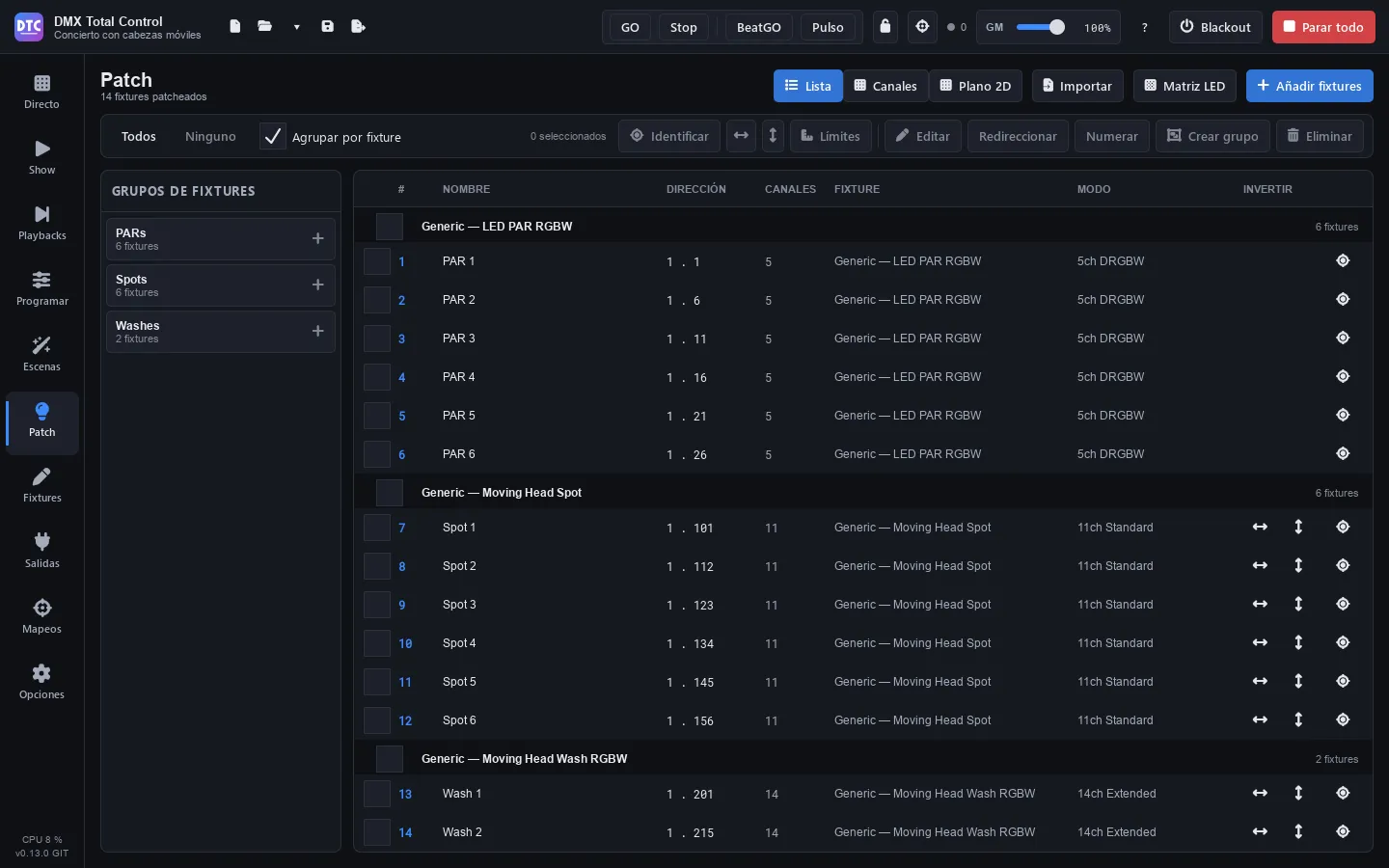
Patch (F5) holds the fixtures of your rig: what they are, which universe and address they are on, their number, the fixture groups and where they are on stage.
In the header you choose the view and you have the tools to add things:
- “List”: all the fixtures by address.
- “Channels”: the 512 channels of each universe, with the fixtures on top.
- “2D plan”: the stage seen from above.
- “Import”, “LED matrix” and “Add fixtures”.
Adding fixtures
Section titled “Adding fixtures”- Press “Add fixtures”.
- Choose the Manufacturer (type in “Search manufacturer…” to filter) and the Model.
- In the Patch panel:
- Name: the one you will see throughout the program (by default, the name of the model).
- Mode: the DMX mode, with its number of channels.
- Quantity: how many of the same.
- Universe and Address: the address is set automatically to the first free one in the universe.
- Gap: free channels between one fixture and the next.
- With more than one, “Make a group with them” and the name of the Group.
- Below, you see which addresses they will use (“Uses addresses 1 to 20”). If they do not fit in what is left of the universe, they go on to the next one.
- Press “Patch fixture” or “Patch N fixtures”.
The window stays open so you can keep adding, with the address already at the next free one. If something cannot be patched (the addresses are taken, for example), the reason appears in red at the bottom. Press “Close” when you finish.
For single dimmers, choose Generic › Generic Dimmer: instead of a mode, you ask for a number of Channels.
Tip: if you cannot find your fixture, download the Open Fixture Library, import its GDTF or create it on the Fixtures page.
The list
Section titled “The list”Columns: selection checkbox, # (number), NAME, ADDRESS (universe . address), CH, FIXTURE (manufacturer and model), MODE, INVERT (pan and tilt) and the identify button.
- “Group by fixture” groups them by model, with a checkbox to select all the fixtures of each model. A click on the header of a model folds it (hides its fixtures) or unfolds it.
- A double click on a fixture edits it.
Selecting
Section titled “Selecting”The tools of the bar work on the selection:
- A click selects; Ctrl+click adds or removes; Shift+click selects all the fixtures from the last one you clicked to that one (in that direction, which is the order of the selection), and Ctrl+Shift+click adds them. “All” and “None”. The checkbox of a row adds or removes its fixture (like Ctrl+click); with Shift, it adds all of them from the last one you clicked.
- “Identify”: the selected fixtures blink in white so you can find them on stage. “Stop identifying” stops it (it also stops when you leave the page). The button on each row identifies only that fixture. The list stays where it was.
- Invert pan and invert tilt (the arrow icons): for the fixtures that have them.
- “Limits”, “Edit”, “Re-address”, “Renumber”, “Create group” and “Delete”: explained below.
Addresses and universes
Section titled “Addresses and universes”- Editing a fixture: select one and press “Edit” (or double-click it). You can change Name, Mode, Universe, Address and Number, and press “Apply”.
- Re-addressing several: select them and press “Re-address”. Choose Universe, Start address and Gap: they get consecutive addresses, in the order of the list.
- Dragging in the Channels view: choose the universe at the top and drag a fixture to another address. The shadow shows in green if it fits and in red if the channels are not free. At the top you see how many of the 512 channels are in use. A double click on a fixture edits it.
Universes are created and connected to the interfaces in Outputs.
Fixture numbers
Section titled “Fixture numbers”Each fixture has a number, which is the one the command line of Program uses (1 THRU 8 @ FULL). A new fixture gets the number after the last one.
- Change one in “Edit” › Number.
- To number several in a row, select them, press “Renumber” and type the First number: they are numbered in address order.
Fixture groups
Section titled “Fixture groups”Fixture groups let you select with one click in Patch and in Program (GROUP 2 in the command line), and each one has its own strip in the mixer. They are also used in the SHOW (colour wheel, XY grid, palettes, dimmer and movement speed) and in the mappings.
- Select the fixtures.
- Press “Create group” and type its name (for example,
Front washorSpots).
The “Fixture groups” panel on the left shows them with their number of fixtures. A click on a group selects its fixtures; Ctrl+click or Shift+click adds them. Right click:
- “Rename”.
- “Move up” and “Move down”: move it in the list.
- “Replace with selection”: the group now has the selected fixtures.
- “Save the selection here…”: see Selections.
- Selection patterns, in the group order: “Select odd”, “Select even”, “Select in reverse order”, “Select the first half”, “Select the second half”, “Select from the ends to the middle” and “Select from the middle to the ends”.
- “Delete group”.
The order of the groups is yours to choose: drag a group by its grip (left of its name) to another place in the list, or use “Move up” and “Move down”. “A–Z”, in the header of the panel, orders them alphabetically (numbers as numbers: “Truss 2” before “Truss 10”). New groups go at the end. The order is saved with the show, and it is the same in Program and in the GROUP numbers of the command line.
Selections
Section titled “Selections”A selection is an ordered part of a group: for example, the spots of a group of six taken from the ends to the middle. The order matters, because fans and FX follow it.
- Select the fixtures in the order you want (or with a pattern from the group menu).
- Press the + of the group (or “Save the selection here…”) and type a name.
Selections appear under their group. A click selects their fixtures in their order, here and in Program. Right click: “Rename” and “Delete selection”. The arrow to the left of the group hides or shows its selections.
2D plan
Section titled “2D plan”The plan shows the stage seen from above, with the AUDIENCE at the bottom. You use it to select in Program, to see the output and for the colour effects laid out on the plan.
In the plan header:
- “Width (m)” and “Depth (m)”: the size of the stage.
- “Auto arrange”: spreads out all the fixtures.
The tools (they work on the selection and in its order):
- “Live”: shows the colour, the dimmer, the strobe and the gobo of each fixture, and every pixel of bars and matrices.
- “Lasso”: selects by drawing around the fixtures instead of with a box.
- “Select”: click or box to select.
- “Move”: drag the fixtures (the whole selection moves) or the view.
- “Grid”: “Free”, 10 cm, 25 cm, 50 cm or 1 m: where the fixtures land when you move them.
- “Look”: how the selected fixtures look: “Round”, “Square” or “Rectangle”.
- “Arrange”: places them in a “Line”, “Line, front to back”, “Circle”, “Grid, by rows”, “Grid, snake”, “Grid, by columns” or “Grid, snake by columns”, with the Spacing (cm) and the Columns next to it.
- “Align”: “Left”, “Centre”, “Right”, “Back”, “Middle”, “Front”, “Distribute across” and “Distribute front to back”.
- 15° (right click: the other way) and 90°: rotate the selection.
- “Height and facing”: where the selected moving heads hang, for Follow.
Moving heads have a small arrow on their edge: the way they face. The names of fixtures that are very close together are hidden so they do not overlap: zoom in to read them.
The wheel zooms, the right button or the middle one drag the view and a double click with them centres it. The buttons in the corner also zoom.
Tip: place the fixtures in the order you want the effects to run: select them from left to right and use “Arrange › Line”.
Height and facing (Follow)
Section titled “Height and facing (Follow)”For Follow to aim all the moving heads at a point correctly, each one needs to know where it is. Place the heads on the plan where they really are, select them and press “Height and facing”. What you change applies at once to all the selected heads and is saved with the show:
| Field | What it is |
|---|---|
| Height | How many metres above the stage floor the axis of the head is (if not set: 4 m hung, 0 m standing). |
| Mounted | “Hung” (from a bar or a truss, upside down) or “Standing” (on the floor). |
| Facing | Where the beam goes with the pan in the centre and the tilt leaning forward. 0° is towards the audience and it turns clockwise; it is the same rotation as the one of the 15° and 90° buttons, and the arrow on the plan shows it. |
| Pan travel / Tilt travel | The degrees each axis travels. “Its definition” uses the ones in the fixture definition; if it does not include them, 540° and 270° are used, and you are warned in orange. |
| Pan the other way / Tilt the other way | If, with Follow, a head pans or tilts the opposite way. It only affects Follow; the Patch inversions are in Limits. |
“(they differ)” means that the selected heads do not have the same value; when you change it, all of them take the new one.
Limits
Section titled “Limits”Select fixtures and press “Limits”:
- Dimmer, Pan and Tilt: the allowed range, from 0 to 100 %. For example, a dimmer that never goes above 80 % or a tilt that never points at the audience.
- “Invert pan”, “Invert tilt” and “Swap pan and tilt” (for heads hung upside down or rotated).
- “Reset”: no limits and no inverted or swapped axes.
With a single fixture, the Channels list lets you decide for each channel:
- Fades: whether it follows the fade times. Off, it jumps straight to its value (useful for colour wheels and gobos).
- Dimmer: whether it is scaled by the grand master, the group masters and the scene dimmers. The grand master, besides, only scales the light (see Masters).
Limits act on the output: scenes, effects and live edits keep their values, but the output respects the limits. With several fixtures you see the values of the first one that has each control, and what you change is applied to all the ones that have it.
LED matrices and strips
Section titled “LED matrices and strips”“LED matrix” patches a matrix or a pixel strip in one go:
- Name, Width (pixels) and Height (pixels) (height 1 for a strip).
- Colours: the order of each pixel (RGB, GRB, BGR, BRG, GBR, RBG or RGBW).
- Wiring: “Rows”, “Rows, snake”, “Columns” or “Columns, snake”.
- Pixel 1: the corner where it starts (“Top left”, etc.).
- Universe and Address.
- Check the summary and the preview of the pixel order, and press “Patch”.
One fixture is created for each line of pixels, plus a group for the colour effects and its place on the plan. If a line needs more than one universe, make it shorter or wire it the other way.
Importing from another show
Section titled “Importing from another show”“Import” brings part of another show (from DMX Total Control or from QLC+) into this one:
- “Patch of another show…”: its fixtures. They go to the same addresses if those are free; if not, to the next ones.
- “Scenes of another show…”: its scenes, assigned to the fixtures of this show that match (by address and model, by name or by model). They go into groups with the same name.
- “Patch and scenes of another show…”: both.
Deleting fixtures
Section titled “Deleting fixtures”Select them and press “Delete”. It asks first: their values are removed from all the scenes.