
Fixtures
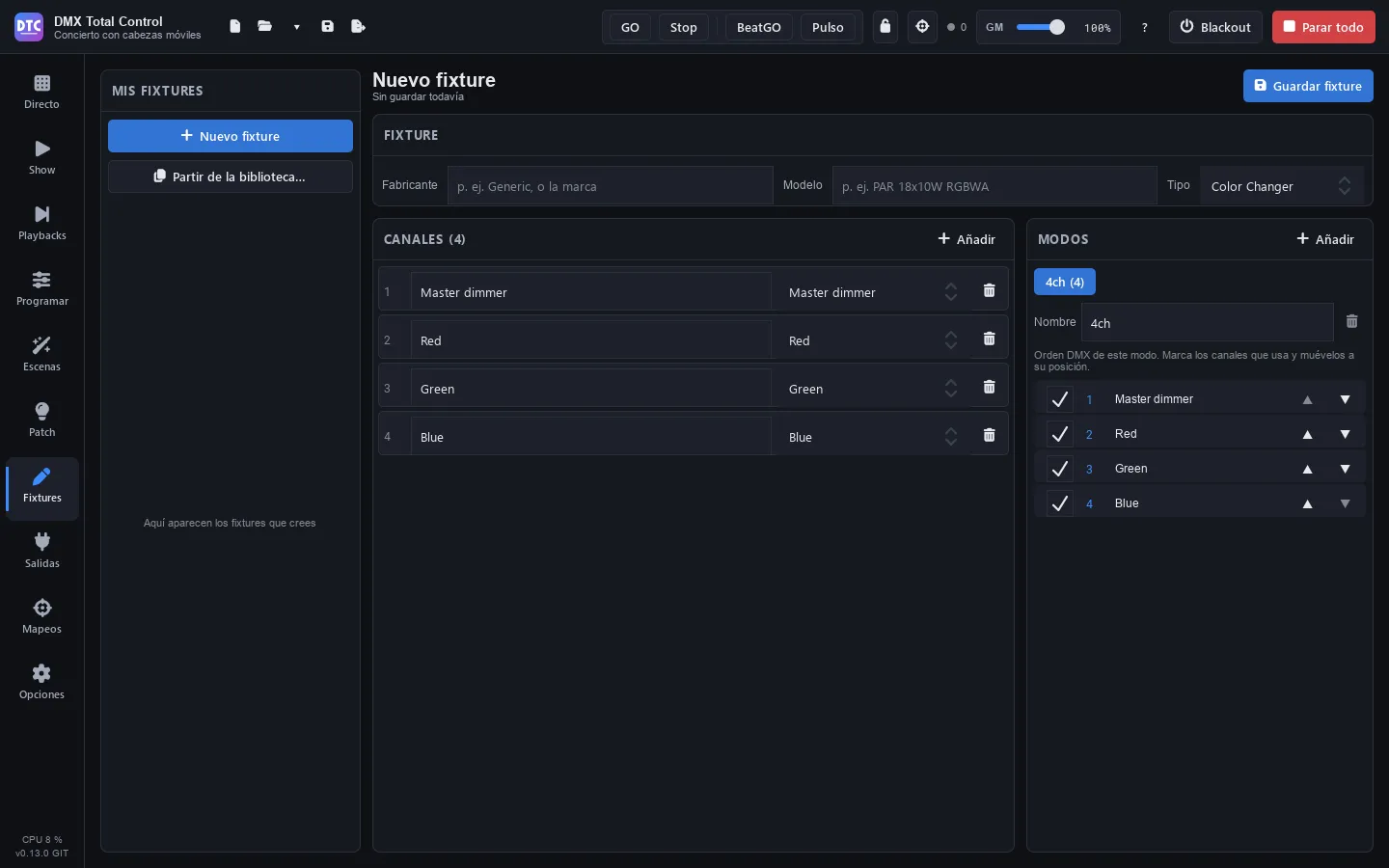
To patch a fixture, the program needs its definition: which channels it has, what each one does and which modes it works in. This page explains where definitions come from and how to create your own on the Fixtures page (F6).
The fixture library
Section titled “The fixture library”When you add fixtures in the Patch you choose from all these definitions:
- The built-in library: thousands of fixtures from many manufacturers, in
.qxfformat. - The generic fixtures: 16 basic fixtures under the manufacturer Generic (RGB, RGBA, RGBW, RGBWA, RGBWA+UV and white LED PARs, an 8-segment LED bar, spot, beam and wash heads, scanner, strobe, blinder, laser, smoke machine and hazer), plus the Generic Dimmer.
- The Open Fixture Library, if you download it.
- The GDTF fixtures you import.
- Your fixtures: the ones you create on this page or import.
In Options › Fixture library you see how many definitions are available and you find everything you need to extend the library.
Tip: for Program, FX and palettes to recognise the function of each channel (dimmer, red, pan, gobo…), the definition has to include the group or the preset of the channel. The ones in the library include it; in yours, choose the preset of each channel carefully.
Creating a fixture
Section titled “Creating a fixture”The Fixtures page is the fixture creator. On the left, “My fixtures” lists the ones you have created; on the right, the editor.
- Press “New fixture”, or “Start from the library…” to start from a copy of one that already exists (it gets the same name with “(copy)”).
- In Fixture, type the Manufacturer (for example
Genericor the brand), the Model (PAR 18x10W RGBWA) and choose the Type. - Add the channels (see below).
- Set up the modes.
- Press “Save fixture”.
The fixture is available at once in the Patch, under its manufacturer. At the top you see its state: “Unsaved changes”, “Saved in your fixtures” or “Not saved yet”. If you open another fixture with unsaved changes, it asks whether to discard them (“Keep editing” / “Discard changes”).
Channels
Section titled “Channels”In Channels, the “Add” button offers the most common channels (dimmer, red, green, blue, white, amber, UV, pan and pan fine, tilt and tilt fine, strobe, colour wheel, gobo wheel, pan/tilt speed) and “Custom channel”.
On each channel:
- Its name and its preset (the drop-down): the preset says what the channel does. Changing the preset also changes the name, unless you have given it a name of your own.
- The bin deletes it.
A “Custom” channel also has:
- Group: its general function (intensity, colour, gobo, beam…).
- Colour: on an intensity channel, which colour it is (red, green…) or “None” for a dimmer.
- Fine: it is the fine channel (16 bits) of another one.
- “Ranges (N)”: what each range of DMX values does, for example 0-7 Closed, 8-255 Strobe. Press “Add range” and type its Description. Ranges cannot overlap. They are the presets you will later see as buttons in Program.
New channels are added at the end of the mode you have open.
In Modes, “Add” creates a mode with all the channels. Each tab is a mode:
- The Name of the mode and the bin to delete it (there is always one left).
- The list is the DMX order of the mode: tick the channels it uses and move them with ▲ ▼ to their position. The number on the left is its DMX channel within the mode.
Deleting one of your fixtures
Section titled “Deleting one of your fixtures”Open the fixture in “My fixtures” and press “Delete”. It disappears from the library the next time the program starts.
Your fixtures are saved as .qxf files in the user fixtures folder (in Options › “User fixtures folder” › “Open folder”).
Open Fixture Library
Section titled “Open Fixture Library”The Open Fixture Library is an open library with thousands of additional fixtures (MIT licence).
- Open Options (F9).
- In Fixture library › Open Fixture Library, press “Download”. You need internet access.
- Wait for the progress bar to finish (“Cancel” stops it).
When it finishes, it tells you how many fixtures were downloaded and how many are new. Afterwards, the same place shows how many it has and when it was downloaded.
To bring it up to date, press “Update” (the same button). If “Check for updates at startup” is on in Options, once a day the program checks on GitHub whether the library has new or improved fixtures since your download, tells you and highlights the button; “Check for updates” checks it right away. The update:
- adds the new fixtures (they are listed below);
- changes the ones that have improved, also the ones you have patched (if their new mode does not fit where they are, they keep the previous version until you patch them again);
- keeps the ones the library no longer has, in case a show uses them;
- does not touch your fixtures or those of the built-in library: if they have the same manufacturer and model, yours (or the built-in one) stays.
A download that cannot be read, or that is cut off, changes nothing.
Importing GDTF
Section titled “Importing GDTF”GDTF is the open format that manufacturers publish on GDTF-Share (with a free account).
- Download the
.gdtffiles of your fixtures (or the.zipof a GDTF-Share multiple download). The “GDTF-Share” button in Options opens its website. - In Options › Fixture library › GDTF fixtures, press “Import GDTF…” and choose the files, folders or the
.zip. - They are converted in the background, with a progress bar. “Stop” stops the import.
When it finishes, it tells you how many were converted and, if any could not be read, why. If the same fixture is already in another library, the GDTF one is added as “(GDTF)” and you can use both. Importing it again updates it.
For each mode, the first DMX break is used; virtual channels (without DMX) are left out.
Some channels change their function with the value of another channel (for example, the prism rotation only turns with the prism on “rotation”). In them the functions that do nothing are left out and, where there are several, each range carries their names together (for example, “0 deg / Stop”). To see it on a fixture imported before, import its .gdtf again.
Importing fixture files
Section titled “Importing fixture files”Options › Import fixture files › “Import…” accepts .qxf definitions (the QLC+ format), .gdtf files or a .zip that contains them. They are added to the library and it tells you how many are new.
Importing my QLC+ fixtures
Section titled “Importing my QLC+ fixtures”If you created fixtures in QLC+ on this computer, Options › “Import my QLC+ fixtures” › “Import” copies them to your fixtures.
Formats that cannot be imported
Section titled “Formats that cannot be imported”Libraries of other programs in closed or encrypted formats cannot be imported. Most fixtures are in the Open Fixture Library or on GDTF-Share; for the ones that are missing, create them on this page.