
Outputs
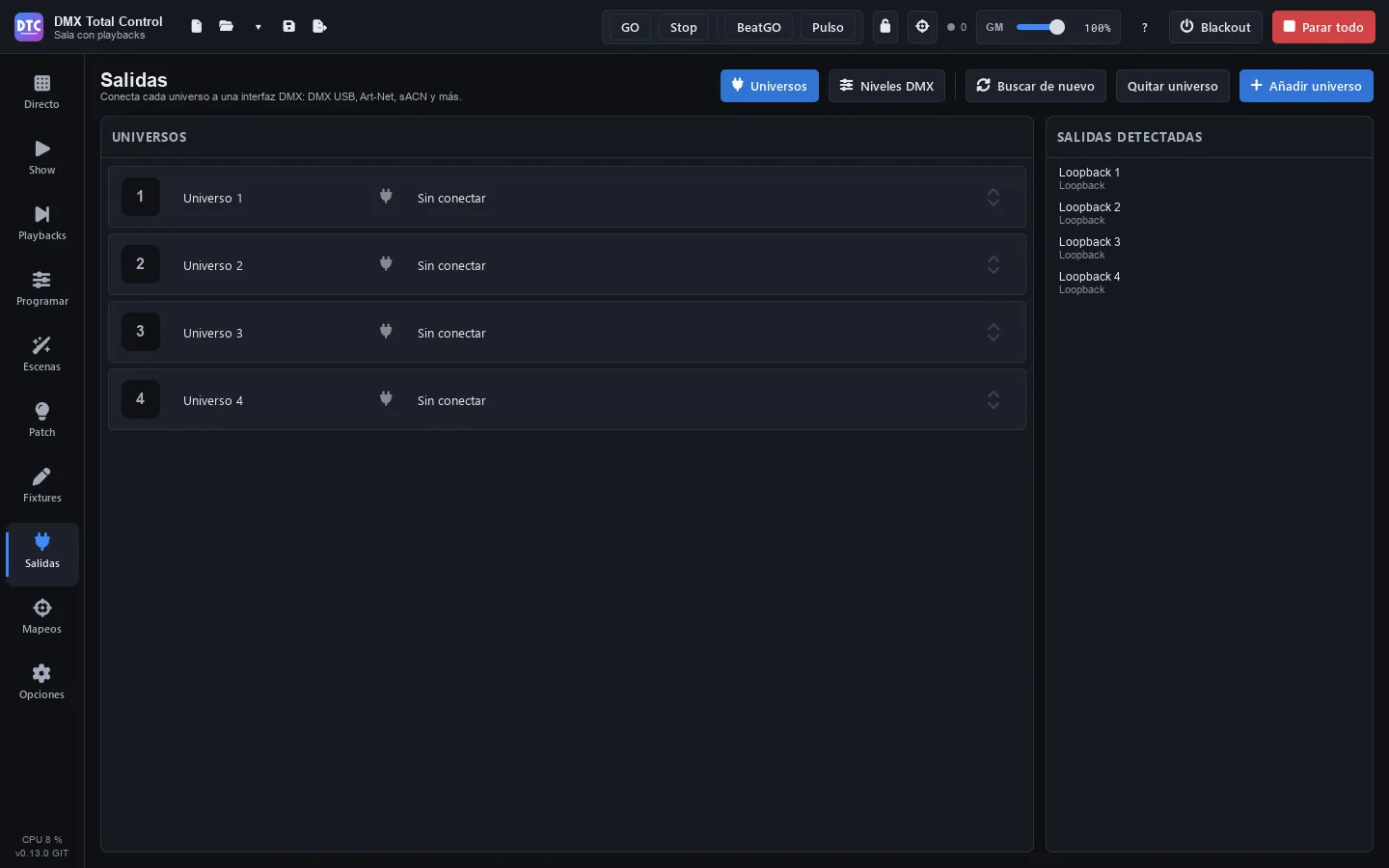
Outputs (F7) connects each universe of the show (512 DMX channels) to an interface: a DMX USB interface, an Art-Net node or an sACN output. It also has the DMX levels monitor, which shows live what goes out.
In the header:
- “Universes” / “DMX levels”: the two views of the page.
- “Rescan”: looks for the connected interfaces again.
- “Remove universe” and “Add universe”.
Connecting a universe
Section titled “Connecting a universe”- Connect the interface to the computer (or to the network, for Art-Net and sACN).
- If it does not appear in “Detected outputs”, press “Rescan”.
- In the row of the universe, open the drop-down (it says “Not connected”) and choose the output.
Each output appears with the name of its type and the name of the interface or of the network: “DMX USB — …”, “ArtNet — …”, “E1.31 — …” (E1.31 is sACN). The connected universe is marked in green. To disconnect it, choose “Not connected”.
The connection is remembered for the next time you open the program.
Tip: DMX USB interfaces based on FTDI chips need their drivers. If you do not have them, the program installer offers the page to download them when it finishes.
Universes
Section titled “Universes”- “Add universe” adds one at the end. When you patch, you choose which universe each fixture goes in.
- Click the name of a universe to change it (the name is saved with the show).
- “Remove universe” removes the last one (there is always one left). If it has patched fixtures, you cannot: move them to another universe or delete them in the Patch first. If it is the input of a controller, it asks first, because that controller will stop working until you turn it on again in Mappings.
DMX levels
Section titled “DMX levels”“DMX levels” shows the 512 channels of a universe just as they leave the program, with everything applied (scenes, programmer, mixer, grand master, limits…):
- Choose the Universe in the drop-down.
- Each box has the channel number and its value (0–255). “Show as %” switches to percentages.
- Boxes with a border belong to a fixture. Hover over a channel to see which fixture it belongs to (“Name — channel N”).
Tip: if a fixture does not respond, check here whether its channel moves. If it moves, the problem is in the cable, in the address of the fixture or in the interface; if not, in the patch or in what you are playing.
The same monitor can be a section of the SHOW (“DMX levels”).
DMX input
Section titled “DMX input”An interface with a DMX input (or a desk connected to it) can control the program: you turn it on as a device in Mappings.