
Playbacks
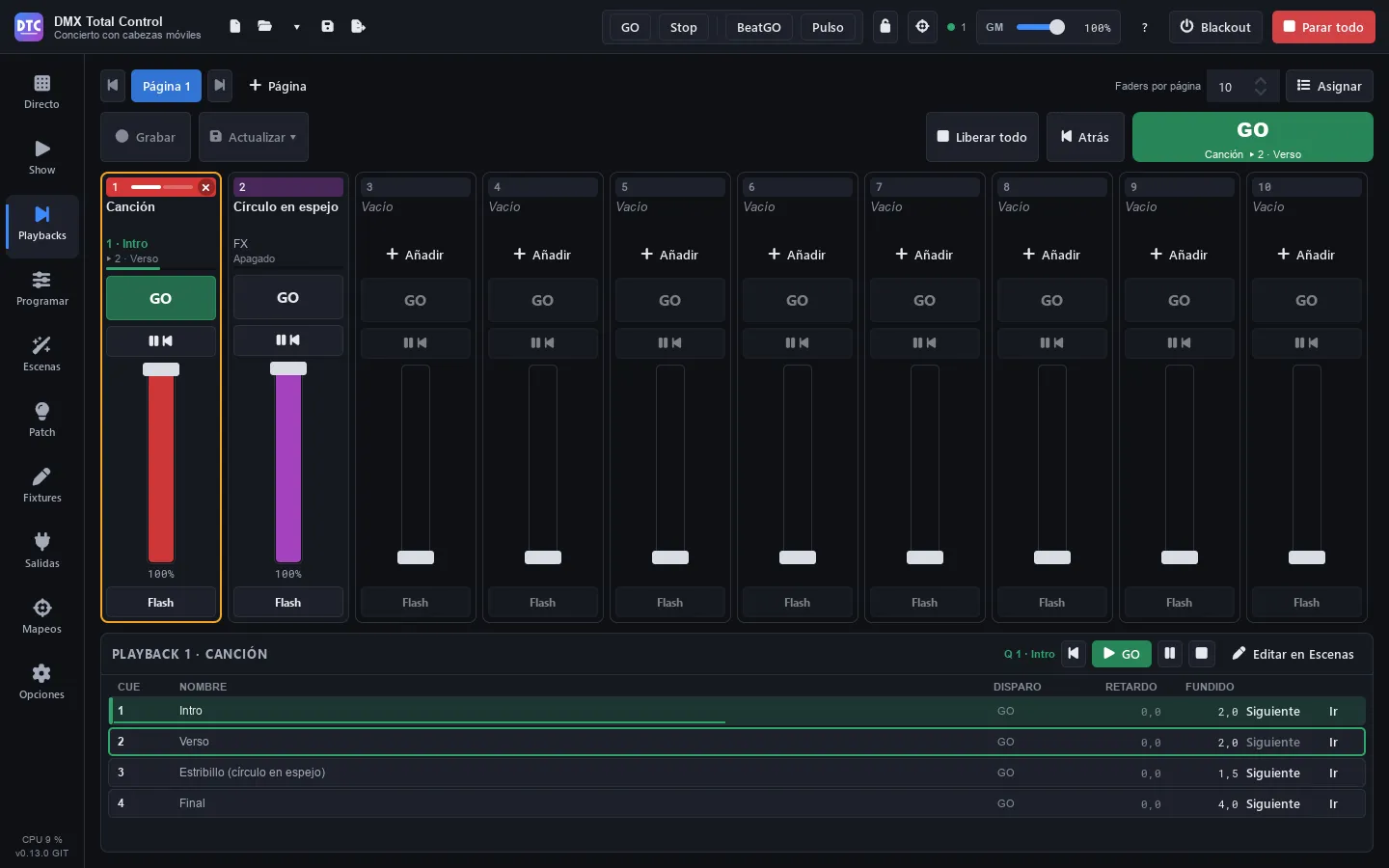
Playbacks (F10) is a fader desk. Each playback plays a cuelist or any scene, and has a GO, a Pause/Back button, a Flash button and a fader that is its intensity. Playbacks are organised in pages of 8 to 20 (10 by default).
It is the most comfortable way to run a show with cuelists: you record the cues from the programmer straight onto a playback and play them with GO or the space bar.
The playback strip
Section titled “The playback strip”From top to bottom:
- The number on the colour of the playback. It lights up while it plays. The × on the right releases it.
- The name: click it to select the playback (orange border). A playback with nothing on it shows “Empty”.
- The cue it plays and the next one (“3 · Verse”, “▸ 4 · Bridge”) and a bar with the progress of the fade. A stopped cuelist shows “Released”; a scene shows its type and whether it is “On”, “Off” or “Paused”.
- Button 1 (GO): the next cue; if the playback is off, it starts it.
- Button 2 (Pause / Back): pauses a running fade; if there is no fade, goes back to the previous cue.
- The fader and its percentage.
- Button 3 (Flash): at full while you press it.
The buttons light up according to the state: GO in green while it plays (it blinks fast during a fade or a wait and slowly when paused), Pause/Back in orange when paused and Flash in orange while it is pressed.
The fader
Section titled “The fader”The fader is the intensity of what the playback plays:
- When you raise it from zero, the playback starts.
- When you lower it to zero, a scene is released; a cuelist stays on its cue (you can change this in the properties).
- A GO with the fader down plays at full.
A double click on the fader takes it to full or to zero.
Putting something on a playback
Section titled “Putting something on a playback”There are several ways:
- Recording from the programmer: see Recording on a playback.
- “Add” on an empty playback: “New cuelist from the programmer” or “Put a scene here…”.
- Assign: press “Assign” in the header. The list of scenes appears on the right: drag them onto the playbacks (while the list is open, a scene dropped on a playback in use replaces what it had) or double-click one to put it on the first free playback.
- Right click › “Assign a scene…”: choose the cuelist or the scene in the list and press “Put it on playback N” (or double-click it).
From Program you can also record a new cuelist and put it on the first free playback (see Recording).
GO, Back and the selected playback
Section titled “GO, Back and the selected playback”On the right of the header you have the controls of the selected playback:
- GO (the big green button, or Space): the next cue of the selected playback. It shows its name and which cue comes next (“Song 1 ▸ 3 · Bridge”).
- “Back” (Shift+Space): the previous cue.
- “Release all”: releases all the playbacks and all the cuelists that are playing.
Space and Shift+Space work on this page as long as you are not typing in a text field. Each press gives a single GO: holding the key down does not run through the cues.
The selected playback panel
Section titled “The selected playback panel”At the bottom you see the selected playback (“Playback N · name”), its state and its buttons: back, GO, pause / resume, release and “Edit in Scenes”.
If it is a cuelist, the list of its cues appears (CUE, NAME, TRIGGER, DELAY, FADE). The playing cue has a green bar and the next one a green border. On each row:
- “Next”: that cue will be the one of the next GO.
- “Go”: jumps to that cue now.
A click on a row only marks it: it does not play anything by mistake.
Recording on a playback
Section titled “Recording on a playback”- Build a look in Program.
- In Playbacks, press “Record”: it blinks in red and each playback shows what will happen when you click it.
- Click a playback:
- Empty (“New cuelist”): a new cuelist is created with the programmer as cue 1.
- With a cuelist (“Record cue N”): its next cue is recorded, with only what changes compared with what it tracks.
- With a scene (“Holds a scene”): you cannot record on it.
Esc cancels the armed recording, and it is also disarmed when you leave the page.
Updating a cue
Section titled “Updating a cue”Change the values in the programmer, select the playback and press “Update ▾”:
- “Update cue N (the next cues follow)”: the change goes on to the next cues that track those channels.
- “Only this cue (the next cues keep their look)”.
The cue that is updated is the one loaded in the programmer or, if there is none, the one that is playing. The right click menu of each playback also has “Record cue N”, “Update the current cue (the next cues follow)” and “Update only the current cue”.
Tip: when you finish recording, press “Reset all” in Program (or tick “Clear the programmer after recording”): while the programmer holds values, it overrides what you play.
- Click the name of a page to see it. ◀ ▶ (or PgUp / PgDn) go to the previous or the next one.
- “+ Page” adds a page.
- “Faders per page”: 8, 10, 12, 16 or 20 playbacks per page.
- A double click on a page renames it. Right click: “Rename…”, “Move left”, “Move right” and “Delete page…” (with more than one page). When you delete it, its playbacks are emptied; what they play keeps playing and the cuelists and scenes stay in Scenes.
Playback properties
Section titled “Playback properties”Right click › “Properties…”. Changes are applied at once.
- Label: the name it shows (empty: the name of the scene).
- Colour: a swatch, or the A for the colour of its scene type.
- Button 1, Button 2 and Button 3: what each one does: “Nothing”, “GO”, “Back”, “Pause”, “Pause / Back”, “Release”, “Flash”, “Flash + GO” (at full while pressed, and the next cue), “On / off” or “Select” (so that Main GO, Record and Update act on it).
- The fader starts it: whether raising the fader starts the playback.
- The fader at zero releases it: “Default” (a scene yes, a cuelist no: it keeps its cue), “Yes” or “No”.
The same menu has “Edit in Scenes”, “Release” and “Clear the playback” (removes it from the playback; the cuelist or the scene stays in Scenes).
Releasing
Section titled “Releasing”- The × on the number of a playing playback, or “Release” in its menu.
- “Release all” in the header.
Releasing a playback also releases that scene if it is playing in a Live group.
Akai APC controllers
Section titled “Akai APC controllers”In Mappings › “Devices”, “Map it all” assigns a whole controller to the playbacks in one go:
- Akai APC mini and APC mini mk2 → Playbacks: each column is a playback 1-8 of the current page: its fader and, from the bottom, GO, Pause/Back, Flash and its first 5 cues. The button under the pads releases it, the last fader is the grand master and the buttons on the right are previous and next page, GO and Back of the selected playback, blackout, tap, BeatGO and stop all.
- Akai APC40 mkII → Playbacks: each track is a playback 1-8, with its first 5 cues on the clips; the device knobs are the faders of playbacks 9-16.
The LEDs show the state of each playback.
Playbacks in the SHOW and on the remote
Section titled “Playbacks in the SHOW and on the remote”- The SHOW can have a playbacks section that follows the current page or shows a fixed one.
- On the remote control, when any playback holds something, a “Playbacks” page appears with its strips.
With programming locked
Section titled “With programming locked”If you lock “Programming” with the padlock in the top bar, the playbacks keep working (GO, faders, flash), but you cannot record, update, assign or change the pages or the properties.