
Mappings
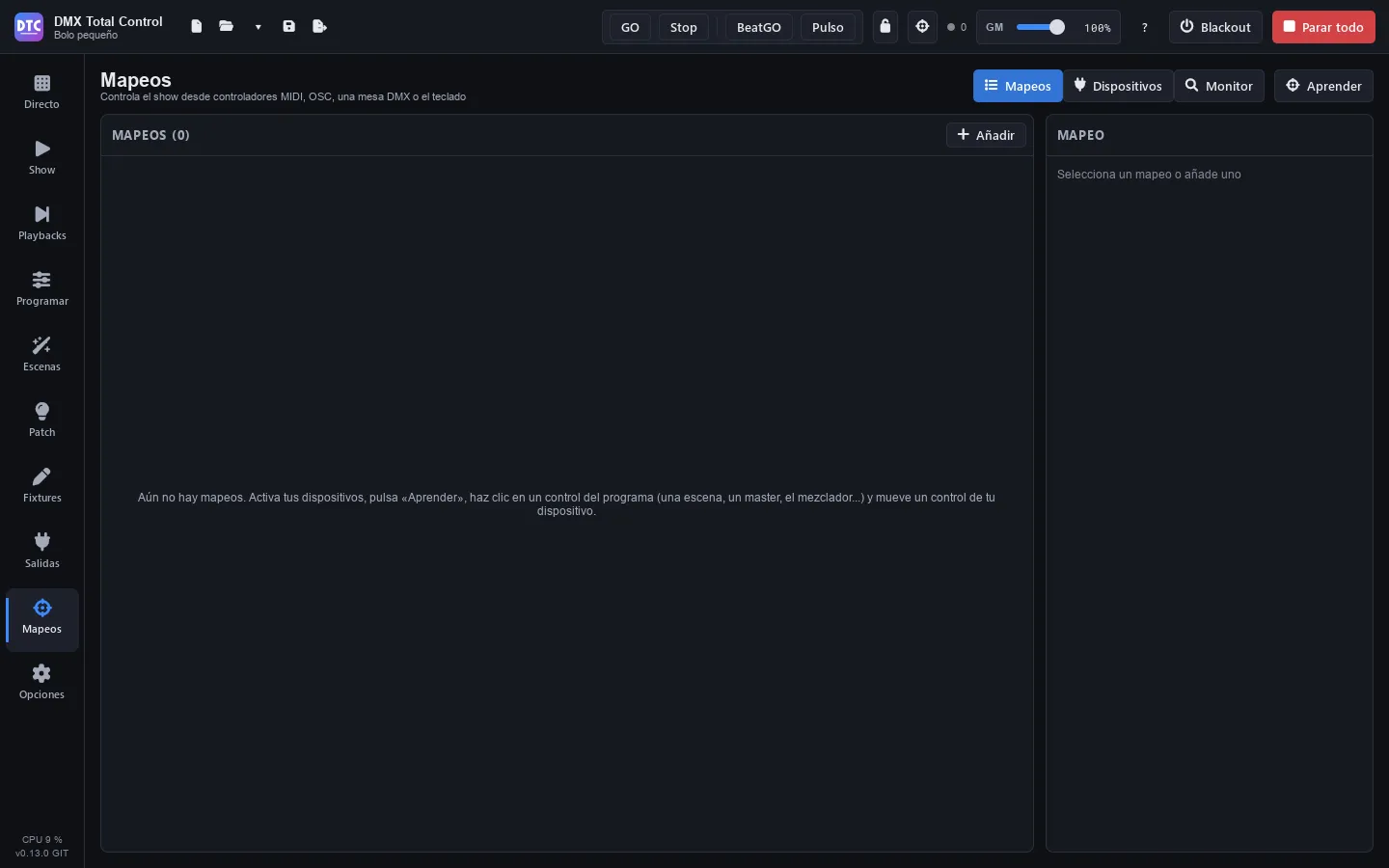
Mappings (F8) lets you control the show from outside: MIDI controllers, OSC from another application, a desk through DMX input or the keyboard. A mapping links a control of your device (a pad, a fader, a key…) with something in the program (a scene, a master, a GO…). Mappings are saved with the show.
The page has three tabs, “Mappings”, “Devices” and “Monitor”, and the “Learn” button.
Devices
Section titled “Devices”In “Devices” you see the input devices the program finds, with their type (MIDI, OSC or DMX), their name and the universe they use. The controllers (MIDI and OSC) and the devices you already use come first, under “Controllers and devices in use”; then, under “DMX inputs: interfaces and network”, the other DMX inputs, with a line for each network card.
- Connect the controller and, if it does not appear, press “Search again”.
- Turn on its “Input”.
- If the device has an output, turn on “Feedback (LEDs)” so that the program lights its LEDs or moves its motor faders.
A mapping of a device that is not connected is kept: it works again when you connect the device.
Learn mode
Section titled “Learn mode”The fastest way to create mappings is Learn mode:
- Turn on the input of your device in “Devices”.
- Press the target in the top bar (or “Learn” on this page). The controls that can be mapped are marked in purple; a number in the corner tells you how many mappings they already have.
- Click a control of the program: a Live scene, a master, a mixer button, a playback…
- The purple bar says “Move a control of your device or press a key for: …”. Move the fader, press the pad or press a key.
- The program tells you “Mapped: …”. Go on with the next control.
- Press “Done” (or Esc) to leave.
In Learn mode, Shift+click still uses the control instead of mapping it. Esc cancels the pending control; a second Esc leaves the mode. The “Mappings” button in the purple bar brings you to this page.
A control of the program can have several mappings (for example, a pad of a controller and a key).
Tip: when you learn a button of an Akai APC, the mapping already comes with the LEDs in green while it plays.
What can be mapped
Section titled “What can be mapped”- Top bar: GO, Stop, BeatGO, grand master, Blackout and Stop all.
- Live: each scene, ◀ ▶, Pause and Release groups in the header, and on each group its release, previous, next and master.
- Mixer: on each strip, the dimmer, the hue, the saturation, the strobe and its speed, and the Full, Blackout, Flash, Flash excl. and Full excl. buttons.
- Program: the palettes.
- Playbacks: the page names, page ◀ ▶, “Release all”, “Back”, the big GO, and on each playback its ×, its name (select), its three buttons and its fader.
- SHOW: the buttons and the faders (the whole fader, with all its elements), and ◀ ▶ of the playbacks sections.
The mapping list
Section titled “The mapping list”In “Mappings”, each row shows the control of the device, what it controls and its behaviour. A purple dot marks a button and a blue one a fader. Click a mapping to edit it on the right, or press “Add” to create an empty one.
Editing a mapping
Section titled “Editing a mapping”Control
Section titled “Control”- The type: MIDI, OSC, “DMX input” or “Keyboard”.
- Device: a specific one or “Any device”.
- MIDI: CC or Note, its number (0–127) and the MIDI Channel (1–16).
- OSC: the path, for example
/scene/1. - DMX input: the Channel (1–512).
- Keyboard: the key, for example
QorF9. - “Learn the control”: press it and move the control of the device to fill in all of the above.
Drives
Section titled “Drives”What the mapping does. The buttons:
| Target | What it does |
|---|---|
| Play a scene | The chosen scene, in its group. |
| Scene N of a group | The scene that is in that position in the group (Scene number). |
| Release a group / Next scene of a group / Previous scene of a group | In one group or in “All groups”. |
| Blackout, Stop all, Pause all, Tap tempo, BeatGO, GO, Stop | Like their buttons (GO and Stop choose the mode, as in the top bar: one of them is always on). |
| Palette | The palette on its own fixtures or on a fixture group. |
| Mixer: full, blackout, flash, exclusive flash, exclusive full, strobe | On the chosen mixer strip. |
| Playback: GO, back, pause / back, flash, release, select | On a playback. |
| Playback: go to a cue | Jumps to the given Cue (1 is the first one in the list). |
| GO of the selected playback / Back of the selected playback | Like the big GO and “Back” of Playbacks. |
| Playback page N / next / previous | Changes the playback page. |
| Release all playbacks | Like “Release all”. |
The faders:
| Target | What it moves |
|---|---|
| Grand master | The GM. |
| Master of a group | The master of that group. |
| Live dimmer of a scene / Live speed of a scene | Its live sliders. |
| BPM | The tempo. |
| Mixer: dimmer, hue, saturation, strobe speed | On the chosen strip. |
| Fader of the SHOW | A whole SHOW fader. |
| Playback: fader | The fader of a playback. |
For playbacks you choose the page (“Current page (follows)”, which follows the page on screen, or a fixed one) and the Playback number. With “Or a cuelist or a scene, wherever it is” the mapping acts on that cuelist or scene on whichever playback it is. In “go to a cue” you see which cue it takes you to now (“Now: cue 3 of Song 1”).
Behaviour
Section titled “Behaviour”On buttons:
- “Toggle: each press on / off”: each press turns it on or off. On a scene it is called “Press: follows GO / Stop”: it plays it or stops it as GO and Stop of the top bar say.
- “Flash: while pressed”.
- “Only on” / “Only off”.
Playback buttons act when pressed, except flash, and do not have this option.
On faders:
- “Absolute: follows the fader”.
- “Incremental: each press one step” (for buttons that go up or down).
- “Relative: endless encoder” and “Relative: encoder, 1 up and 127 down” (endless encoders).
- “From” … “to”: the range, from 0 to 100 %. “Invert” turns it round.
- “Step %” and “Loop” (incremental and relative).
- “Pick up the fader (no motor)” (absolute): the controller fader only moves the level after it reaches it, with no jumps.
Feedback
Section titled “Feedback”With MIDI or OSC, “Feedback” makes the program light the button of the device or move its motor fader. Only what changes is sent.
For the LEDs of MIDI buttons:
- In “LEDs of”, choose “Any controller (numbers)” or your controller: Akai APC mini, Akai APC mini mk2 or Akai APC40 mkII.
- For “On”, “Off” and “Paused”, choose the colour from the swatches (on an APC) or type the value (0–127) for any other controller.
- On the RGB pads of the APC mini mk2, also choose how they light up: “Dim”, “Full”, “Pulsing” or “Blinking” (on the APC40 mkII, “Solid”). If you choose nothing, “On” lights “Full” and “Off” “Dim”.
The controller LEDs turn off when you close the program, delete a mapping or move it to another control, open another show or turn off the device or its feedback.
Duplicating and deleting
Section titled “Duplicating and deleting”“Duplicate” creates a copy of the mapping (useful for another device or channel) and “Delete” removes it.
Keyboard
Section titled “Keyboard”Keyboard mappings work on any page and take priority over the program shortcuts that use the same key. They do not fire while you are typing in a text field (in Program, while the command line has the keyboard) or with Ctrl or Alt held down. SHOW buttons also have their own key, which works only on the Show page (see Show).
Templates for Akai APC
Section titled “Templates for Akai APC”“Map it all” assigns a whole controller in one go. It is on each MIDI device in the “Devices” tab:
- Press “Map it all” on your controller.
- Choose the template:
- “Akai APC mini → Groups” / “Akai APC mini mk2 → Groups”
- “Akai APC mini → Playbacks” / “Akai APC mini mk2 → Playbacks”
- “Akai APC40 mkII → Playbacks”
- Read what each control does and press “Map”. The mappings that device had are replaced; if its input was off, it is turned on.
→ Groups (APC mini and mk2): each column of pads plays the scenes of a group (green: playing; yellow: ready; off: no scene). The faders are the group masters and the last one is the grand master. The buttons under the pads release the groups; the ones on the right are blackout, stop all, pause, tap, BeatGO, previous, next and flash.
→ Playbacks (APC mini and mk2): each column is a playback 1-8 of the current playback page: its fader (it picks up the level) and, from the bottom, GO, Pause/Back, Flash and its first 5 cues (cue 1 at the top). The button under the pads releases it. The last fader is the grand master; the buttons on the right are previous and next page, GO and Back of the selected playback, blackout, tap, BeatGO and stop all.
→ Playbacks (APC40 mkII): each track is a playback 1-8 of the current page: its fader, GO on the track button, Pause/Back on S, Flash on the record arm, select and release, and its first 5 cues on the clips. The scene buttons go to pages 1-5, the bank buttons change the page and the group, and Play and Record are GO and Back of the selected playback. The device knobs are the faders of playbacks 9-16 and the track knobs are the masters of the first groups.
Tip: after “Map it all”, each control appears as a normal mapping in the list: you can change any of them, or delete it, without touching the others.
Monitor
Section titled “Monitor”“Monitor” shows the messages in and out: the time, IN or OUT, the device (or “Keyboard”), the message and its value. Move a control of an enabled device to see what it sends. “Clear” empties the list.
The green light of the target, in the top bar, blinks with each message that comes in.
Alt+click
Section titled “Alt+click”Outside Learn mode, Alt+click on a control that can be mapped takes it to the SHOW: see Show.