
Scenes
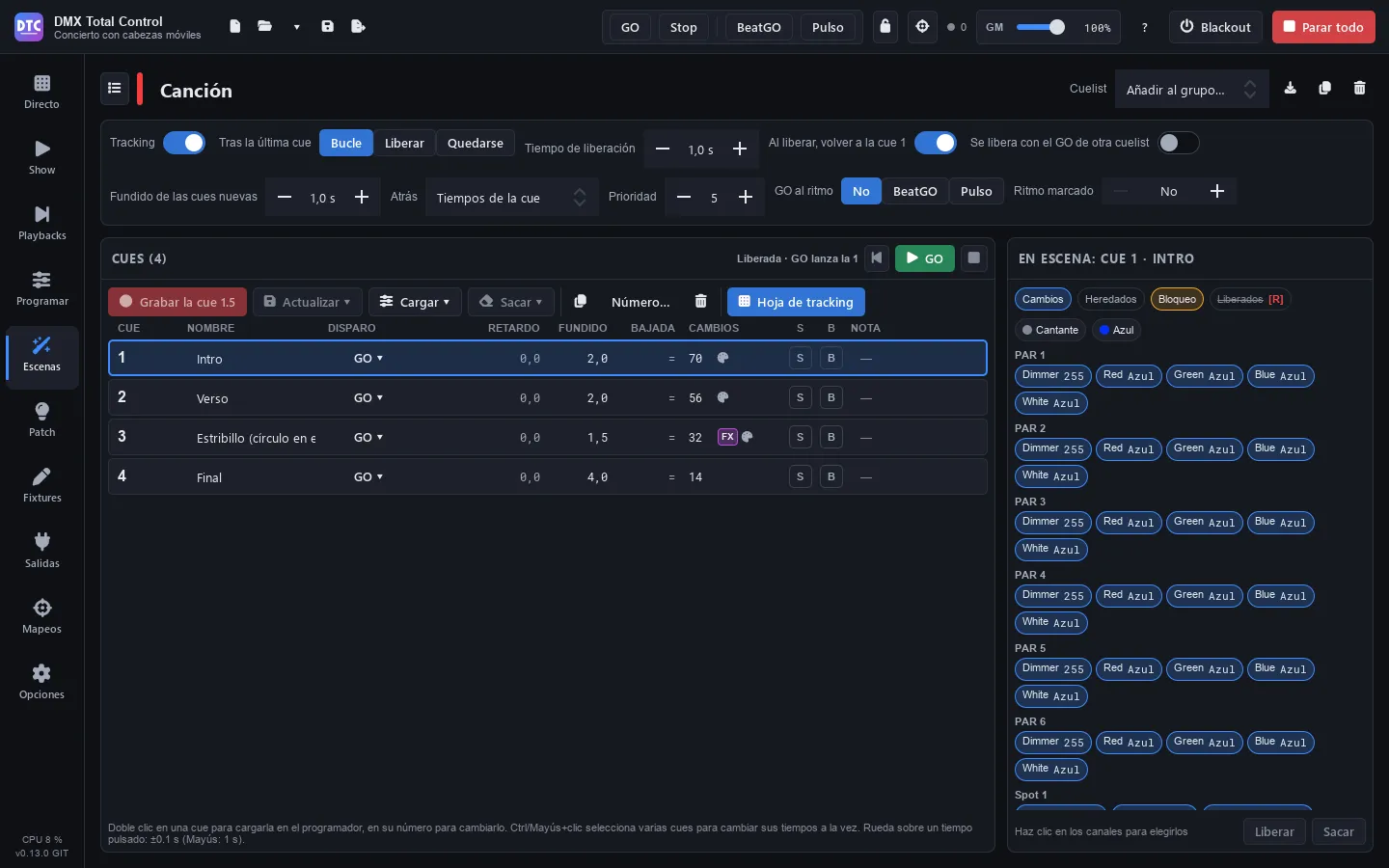
Scenes (F4) is the library of everything you have recorded: static scenes, steps, FX, colour effects, racks, super scenes and cuelists. The list is on the left; on the right, the editor of the chosen scene, which depends on its type.
Almost everything is created from the programmer: new effects take the fixtures selected in Program, and steps and cues take its values.
The scene list
Section titled “The scene list”- “Search…”: filters by name (or by the name of the folder).
- “Folders” / “Groups”: shows the scenes by folders or by the Live groups they are in (“Not in a group” for the rest).
- Fold all / Unfold all: the button on the right.
- Type filter: “All”, “Static”, “Steps”, “Cuelists”, “FX”, “Colour FX”, “Racks” and “Super scenes”.
- Ctrl+click and Shift+click select several scenes to move them to a folder (“To folder…”).
Each scene has a stripe with the colour of its type. Click one to open it in the editor.
Creating a scene
Section titled “Creating a scene”Press “New”:
| Option | What it creates |
|---|---|
| Static (from the programmer) | A static scene with the values of the programmer. |
| Steps (programmer = first step) | A steps scene. |
| Cuelist (programmer = cue 1) | A cuelist. |
| FX (in the programmer) | Takes you to Program › FX: FX are made there and recorded with “Record…”. |
| Colour FX (selected fixtures) | A colour effect on the selected fixtures, in their order. |
| Mapping on the 2D plan (selected fixtures) | A colour effect laid out where the fixtures are on the 2D plan. |
| Effect rack | An empty rack. |
| Super scene (timeline with audio) | An empty super scene. |
| Import from a file… | Scenes and effects exported from another show (see Import and export). |
The editor header
Section titled “The editor header”- The name: click it to change it.
- The folder (folder icon): moves the scene to a folder.
- “Try” / “Stop”: plays it now, outside the groups. Cuelists have their own GO.
- “Add to group…”: adds it to a Live group.
- Convert to steps (racks, FX, Colour FX, Move FX, Curve FX and chasers): records one cycle into a new steps scene, with only the channels the scene gives a value to: the others, even if they have a default value (the pan or the zoom in the centre on many moving heads), do not go into the steps.
- Convert to a cuelist (steps): see Cuelists.
- Export, “Duplicate” and “Delete” (it is also removed from its groups and racks).
How a scene plays
Section titled “How a scene plays”Under the header is the playback panel. It shows what makes sense for each type:
- “Fade in” and “Fade out”.
- “Cycle time” (or “Step time” on a Colour FX) and “Speed” (from one cycle a minute to ten a second; double click: one cycle a second), with ×½ and ×2.
- “Staggered fade” (static and steps): each fixture starts its fade this long after the previous one, in selection order.
- “Driven by”: “Duration” (the normal times), “BPM” (the times become beats and follow the show tempo, the fades of each step too; the crossfade time of a Live group and the fades of the blocks of a super scene stay in seconds), “BeatGO” or “Pulse” (it advances with the BeatGO button or with the peaks of the audio input). With BeatGO or Pulse, “Divisions” (/2, ×2).
- “Tapped rhythm” (sequences, chasers and FX scenes with FX at “BPM of the show”): the rhythm tapped by pressing its button several times in a row (Live), in BPM. While it has one, its steps go at that rhythm and not by their times; in an FX scene, its FX at “BPM of the show” do one cycle on each beat instead of following the BPM of the show. “Clear” goes back to its own times (or to the BPM of the show). With “BPM”, a beat is a step of that rhythm: a 0.5 b fade lasts half a step.
- “Start”: “Playing” or “Paused, press again to play”.
- “Plays”: “Always” or “N times”, “then” “Release it” or “Hold the last frame”, “and play” “Nothing”, “Next scene of the group”, “Previous scene of the group” or any other scene.
Scene types
Section titled “Scene types”Static
Section titled “Static”It stores fixed values. It shows how many channels and fixtures it has and the palettes it uses (“Uses these palettes: when they change, the scene changes too”).
To change it:
- Press “Edit in the programmer”: it is loaded into Program.
- Change what you want.
- Go back to Scenes and press “Save the programmer in this scene”.
If you save FX in a static scene, it becomes an FX scene.
A sequence of looks, each one with its fade in, its hold and its fade out.
- “Add step”: the programmer becomes a new step after the selected one.
- “Save in step”: saves the programmer in the selected step.
- “Load step” (or double click a step): takes it to the programmer to see and change it.
- Duplicate, ▲ ▼ to reorder and delete the step.
- The ∞ button of the hold makes the step wait for a GO (“Until GO”).
Ctrl+click and Shift+click select several steps: when you change a time, it changes on all of them. Steps apply palettes by value, not by reference.
An FX scene has base values and one or more FX layers. It is created by recording from the programmer with FX (see FX).
- On the left, the list of FX: parameter, fixtures and speed (at “BPM of the show”, the tapped rhythm of the scene if it has one). The bin removes a layer.
- On the right, the controls of the chosen layer (the same as in Program) and its animated preview. You see the changes live while the scene plays.
- “Link”: linked layers share speed and timing.
- If some fixtures do the FX their own way, you are warned: if you change the shape, the size, the direction or the phase here, all of them will do the same.
- To add layers or change the base values: “Edit in the programmer” and then “Save the programmer in this scene”.
Colour FX and mappings
Section titled “Colour FX and mappings”A Colour FX is a pixel effect (more than 60: gradients, fire, meteors, strobes, waves…) that runs through the fixtures in selection order.
- “Effect”: which one.
- “Works on”: “Colour (RGB)”, “White”, “Amber”, “UV”, “Dimmer (value)” or “Shutter”.
- “Colours”: up to 5, depending on the effect. Click a colour to change it (swatches or hue), or “No colour”.
- “Text”: in text effects, the text that runs through the fixtures.
- “Image” and “Animation”: in image effects, the file and “Still”, “Scroll sideways”, “Scroll up and down” or “Animated (GIF)”.
- “Layout”: “In a row” (in selection order) or “On the 2D plan” (where the fixtures are).
- “Parameters”: the ones of each effect.
- “Use the programmer selection”: swaps its fixtures for the selected ones.
At the top you see the real colour of each head while it plays (press “Try” to see it).
A mapping on the 2D plan is a Colour FX that already comes with the plan layout: the effect, the text or the image are laid over the stage just as the fixtures are placed.
Move FX and Curve FX
Section titled “Move FX and Curve FX”They are effects from the previous module: Move FX move pan/tilt with a shape and Curve FX give a wave (sine, triangle, ramps, square, random, strobe…) to channels. You will find them in old shows or in QLC+ shows; they are no longer created from “New”.
They still play the same and have their own editor (shape, width, height, rotation, position, phase, spread over the fixtures, symmetric, relative…). A notice offers “Convert to FX”: they move to the FX editor, also in the programmer, and the groups, SHOW buttons and mappings keep them.
Effect rack
Section titled “Effect rack”Several scenes and effects that play together as one, each one on its own fixtures.
- In “Add” (on the right), click a scene to put it in the rack.
- In “In the rack (N)”, the × removes it.
A rack cannot contain a scene that plays the rack itself.
Chasers
Section titled “Chasers”Chasers from QLC+ shows play normally, but they have no editor. You can convert them to steps with the convert button in the header.
Super scenes
Section titled “Super scenes”A super scene is a timeline with scene tracks and audio tracks. You play it like any scene (in a group, in the SHOW, with a mapping). Its editor takes up the whole page; the list button, at the top left, goes back to the scene list.
The toolbar
Section titled “The toolbar”- “Play” / “Stop” (Space): from the cursor. ⏮ goes back to the start. Next to it you see the time (and the bar).
- “Time” / “Bars”: the grid. In bars, the BPM, the time signature (4/4, 3/4, 2/4) and “Bar 1 here” so that the first bar starts at the cursor and lines up with the music.
- “Snap”: blocks and points snap to the grid.
- “End here”: the super scene ends at the cursor (the × removes the marker: it ends with its last block). “Loop”: it starts again.
- “+ Track” and “+ Audio” (an audio file on the selected track, at the cursor).
- “Static values”: “Take the values of the programmer” (they play while the super scene is running) or “Clear the static values”.
- Zoom − and +.
Putting scenes on the timeline
Section titled “Putting scenes on the timeline”- Press “+ Track” if there is none.
- Drag a scene from the list on the left onto a track. Or select a track, place the cursor and double-click the scene: it is placed at the cursor.
Blocks can overlap.
Working with blocks
Section titled “Working with blocks”- Drag a block to move it, also to another track. Drag its edges to change its length.
- With the block selected, the handles on the top corners are its fade in and its fade out.
- When you lengthen a block, the scene loops (you see marks on each lap) or is stretched so that one cycle lasts the whole block. You change this in the block menu or in the bar at the bottom (“Loops” / “Stretched”).
- Right click: “Loop the scene in the block” / “Stretch the scene to fit the block”, “Duplicate”, “Lock” / “Unlock”, “Open the scene” and “Delete”.
- A double click on a block opens its scene. Del deletes the selected block.
- The bar at the bottom shows the selected block: Start, Length, Fade in, Fade out.
Audio blocks (wav, flac, ogg, aiff, and mp3 if the system supports it) show their waveform, which is worked out in the background. You need an unlocked track to add one.
Tracks and automation
Section titled “Tracks and automation”In the header of each track:
- M: mute (the track does not play).
- Padlock: lock (its blocks and points do not move).
- D: the dimmer automation lane (on an audio track, the volume).
- φ: the automation lane for the phase of its effects.
- ⋯: “Rename” (also with a double click on the name), “Move up”, “Move down”, “Clear the automation of this lane” and “Delete the track”.
- The arrow on the right hides or shows the track.
On an automation lane: a click adds a point, dragging moves it, a double click deletes it and a right click switches between a straight line and a smooth curve. With no points, the dimmer is at full and the phase at 0.
Moving around the timeline
Section titled “Moving around the timeline”- Clicking or dragging on the ruler moves the cursor; a double click on the ruler plays from there. A click on an empty track also moves the cursor.
- Ctrl+wheel: zoom. Shift+wheel: move through time. The wheel on its own scrolls up and down through the tracks.
Cuelists
Section titled “Cuelists”A cuelist is a list of cues that advance with GO. It works with tracking: each cue stores only what changes and the rest carries on from the previous cues. A GO only changes the channels that change: no dips, and nothing it does not touch is retaken.
Cuelists are recorded from the programmer, run in Playbacks and edited here.
Cuelist options
Section titled “Cuelist options”At the top of the editor:
- “Tracking”: on, each cue stores only what changes. Off, each cue stands on its own.
- “After the last cue”: “Loop” (back to the first one), “Release” or “Stay”.
- “Release time”: the fade when the cuelist is released.
- “Reset on release”: after it is released, GO starts again from the first cue.
- “Released by another GO”: a song that ends when the next one starts.
- “New cue fade”: the fade of the first recorded cue; the next ones take the times of the previous one.
- “Back”: the BACK times: “Cue times” or “Fixed time”.
- “Priority”.
- “GO on the beat”: “Off”, “BeatGO” or “Pulse” give a GO on each division.
- “Tapped rhythm”: the rhythm tapped by pressing its button several times in a row, in BPM: a GO on each beat. While it has one, its Follow and Wait times do not count. “Clear” goes back to its own times.
In a narrow window, some of the options are folded away: “More options” shows them.
The cue table
Section titled “The cue table”| Column | What it is |
|---|---|
| CUE | The number. It accepts decimals: 2.5 goes between 2 and 3. Double-click it to change it. A pencil shows that the cue is loaded in the programmer. |
| NAME | Its name. |
| TRIGGER | GO (waits for a GO), Follow (when the previous cue has finished, plus a time) or Wait (a time after the GO of the previous cue). |
| DELAY | How long the cue waits before starting its fade. |
| FADE | The fade time. |
| DOWN | The fade of the dimmers that go down. “=” is the same as the fade. |
| CHANGES | How many channels it changes, and the FX and [R] (released values) marks, and the palette icon if it uses palettes. |
| S | Skip (cue only): what it changes does not go on to the next cues. |
| B | Block: Record and Update also store the values that are equal to the ones it tracks. |
| NOTE | A note for you. |
To change a time, click it and type the seconds, or use the mouse wheel over the clicked time: ±0.1 s (with Shift, 1 s). With Ctrl+click or Shift+click you select several cues and change their times, their trigger or their marks at once.
The playing cue has a green bar with the progress of the fade; the next one, a green border. At the top you see the state (“Q 3 · Verse ▸ 4” or “Released · GO plays 1”) and the Back, GO and release buttons, the same ones as on its playback.
Recording and editing cues
Section titled “Recording and editing cues”- “Record cue N”: the programmer becomes a new cue after the selected one, with only what changes compared with what it tracks.
- “Update ▾”: merges the programmer into the selected cue: “Update cue N (the next cues follow)” or “Only this cue (the next cues keep their look)”.
- “Load ▾” (or double click a cue): takes it to the programmer: “What the stage shows on cue N” or “Only what cue N changes”. Then update it from the “Editing cue…” bar in Program.
- “Take out ▾”: with the channels of the programmer, “Remove the programmer’s channels from cue N (they track again)” or “[Release] the programmer’s channels in cue N” (from that cue on, they go back to what is underneath: other scenes or their rest value).
- Copy to the end: “Copy what cue N changes” or “Copy the whole look of cue N (block cue)”.
- “Number…”: another number for the selected cue. Moving a cue changes what the cues after it track.
- Delete: with “Keep the look of the next cues” ticked, what the cue changes goes on to the next one and the cues after it look the same.
In a narrow list (or in a language with long words), “Update”, “Load” and “Take out” keep only their icon and their ▾ arrow; hover over them to see their name.
The right click menu on a cue has “Go to cue N”, the two ways to load, “Update with the programmer”, “Number…” and “Delete…”.
Cues can use palettes by reference and carry FX layers, which track from cue to cue.
The tracking sheet
Section titled “The tracking sheet”“Tracking sheet” shows what the stage has on the selected cue, fixture by fixture (“Cue N on stage”). If the window is wide, it shows by itself next to the cues.
- The coloured tags tell you what each value is: “Changes” (this cue changes it), “Tracked” (it comes from a previous cue, which is shown: “Q2”), “Block” and “Released” (struck through, with [R]).
- At the top you see the palettes the cue uses.
- Click channels to pick them and press “Release” (puts them in [RELEASE] from this cue on) or “Take out” (they track again from the previous cues).
Converting steps to a cuelist
Section titled “Converting steps to a cuelist”In a steps scene, the “Convert to a cuelist” button in the header turns each step into a cue with what changes from the previous one; steps with a time are chained with Wait. Its groups, SHOW buttons and mappings now play the cuelist. The steps disappear.
Folders
Section titled “Folders”Folders organise the scene list (also in the SHOW, in super scenes, in racks and when you add scenes to a group).
- Create: the folder button with + next to the search box, or “New folder…” in the menu of a scene.
- Put scenes in: drag them onto the folder, or right click › “Move to folder”. It works with several selected scenes.
- Take out: right click › “Remove from its folder”.
- Rename or delete: the ⋯ button of the folder (or right click): “Rename folder” and “Delete folder (its scenes stay)”.
- Click the header of a folder to fold or unfold it.
Folders are saved with the show.
Import and export
Section titled “Import and export”- Export: the export button in the header saves the scene to a
.dtcfxfile (“DMX Total Control effects”) to load it in other shows. It also works with racks. - Import: “New” › “Import from a file…”. The fixtures are matched with the ones in this show; if one in the file is not here, its part is left out and you are warned.
- The scenes of a whole other show: in Patch › Import, “Scenes of another show…”.