
Live
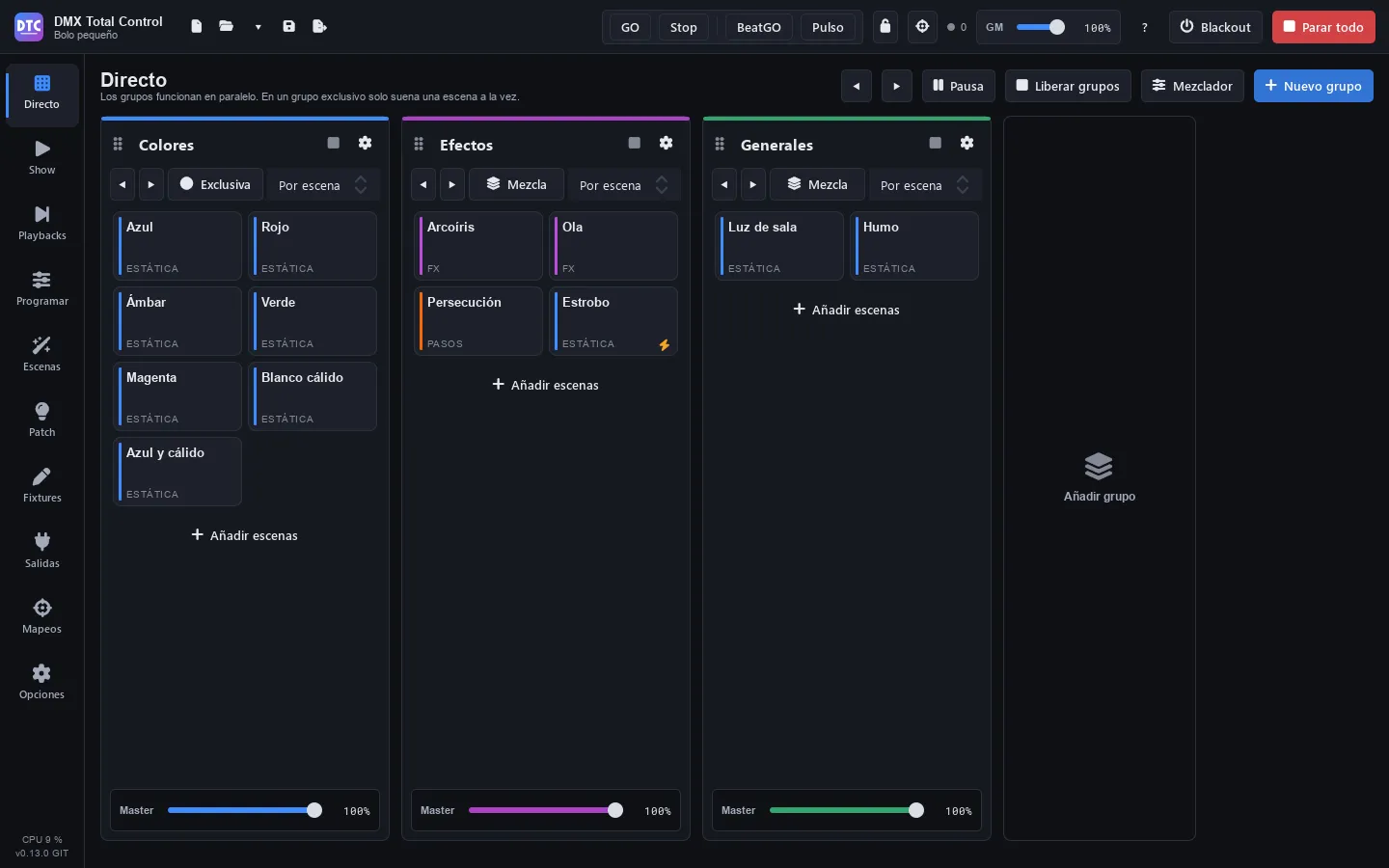
Live (F1) is the page to play scenes during the show. Scenes are arranged in groups, which are columns that work in parallel: each group has its scenes, its mode (exclusive or mix), its crossfade time and its master.
In the page header you have:
- ◀ ▶: previous or next scene in each playing group (also with Ctrl+← and Ctrl+→).
- “Pause” / “Resume”: freezes everything that is playing and continues it.
- “Release groups”: stops the scenes of all the groups.
- “Fold groups” / “Unfold groups”: folds every column at once, to see them all; when they are all folded, it unfolds them.
- “Mixer”: switches to the mixer view. An orange dot warns you that the mixer is changing the output.
- “New group”: adds a column.
Groups
Section titled “Groups”Creating and arranging groups
Section titled “Creating and arranging groups”- Press “New group” (or the “Add group” box at the end of the columns).
- Click the name of the column to change it (for example
Wash,Spots,Strobes,Effects) and press Enter.
The gear button of each column opens its menu: “Change colour” (goes to the next colour), “Move left”, “Move right” and “Delete group”. You can also drag the group by the handle to the left of its name and drop it on another group to take its place.
The ‹ arrow next to the name folds the group: it becomes a narrow strip with its name and how many scenes are playing, to make room for the others. Its scenes go on playing. The › arrow on the strip unfolds it. It is saved with the show. To fold or unfold them all at once, use “Fold groups” / “Unfold groups” in the header.
Adding and ordering scenes
Section titled “Adding and ordering scenes”- Press “Add scenes” at the end of the column.
- In the list, click the scenes you want (they are marked with ✓). You can search by name or by folder and view them by folders or by groups.
- Press “Add N”. Double-clicking a scene adds it straight away.
To reorder, hover over a tile and drag it by its handle (on the right of the tile): drop it on another scene to put it in front of it, or in the empty space of the column to put it at the end. You can drop it in another group and it moves with its options. In the tile menu (right click) you also have “Move up”, “Move down” and “Remove from group”.
Tip: when you record from Program you can put the scene straight into a group with “Add to group”. See Recording.
Playing scenes
Section titled “Playing scenes”Click a tile to play the scene (with GO, the mode the program starts in). To release it, press the square in the header of the group (“Release this group”) or switch to Stop and press it. The playing tile takes the colour of the group and has a pulsing dot.
Each tile shows:
- The name and, below it, the scene type. On a playing cuelist, the cue it is on (“Q 3 · Verse”). After that, the tapped rhythm if it has one (“120 BPM”).
- P7, P2…: the priority, only when it is not the normal one (5). In orange if it is higher than 5.
- A lightning bolt: it is a flash scene.
- A bar split in two at the bottom: a playing scene with steps, cuelist or FX at “BPM of the show”; it alternates on each step (on an FX, on each beat), at its rhythm.
Exclusive or mix
Section titled “Exclusive or mix”The button of each column switches between:
- “Exclusive”: only one scene plays at a time. When you play another one, it crossfades to the new one. The SHOW faders that play scenes are the exception: they add theirs, so you can raise several of the same group at once.
- “Mix”: scenes add up; you can have several playing at the same time.
Crossfade time
Section titled “Crossfade time”The drop-down next to “Exclusive”/“Mix” is the fade time of the group:
- “By scene”: each scene uses its own fade in and fade out.
- “Snap”: no fade.
- 0.5 s to 10 s: that time for all the scenes of the group, instead of their own.
Previous and next scene
Section titled “Previous and next scene”The ◀ ▶ buttons of each column play the previous or next scene of the group, in the order of the column. The ones in the page header do the same in all the groups that are playing.
Flash scenes
Section titled “Flash scenes”A flash scene plays only while you hold its tile down. You turn this on in its properties with “Flash (plays while pressed)”.
Cuelists in a group
Section titled “Cuelists in a group”A cuelist in a group is just another tile: a click plays it (with Stop, it stops it). Its menu (right click) adds “GO (next cue)”, “Back (cue before)” and “Release the cuelist”. To run it comfortably with GO, put it on a playback.
Rhythm of a scene with steps
Section titled “Rhythm of a scene with steps”Scenes with steps (sequences and chasers), cuelists and FX scenes with FX at “BPM of the show” follow the rhythm at which you press their tile:
- One click plays it (with GO, the mode the program starts in; see below).
- With the scene playing, press its tile several times in a row to the beat of the music, with less than 2 seconds between presses. Each press goes to the next step (on a cuelist, it gives a GO) and the scene carries on by itself at that rhythm: one step on each beat, instead of its own times. The rhythm is the average of the last presses. A press that comes a little late, just after the step of that beat (less than half a beat), is that same step: it gives no other one, it only puts the rhythm back in time.
- Only the presses made while the scene is playing count: the one that plays it starts the count. So switching scenes in an exclusive group and coming back does not give a rhythm to either of them.
- After a pause of more than 2 seconds, a click gives one step without changing its rhythm, and the scene keeps playing. To stop it, switch to Stop and press it.
- The rhythm you tapped is played, also with a live speed set; if you then move the speed, the rhythm speeds up or slows down with it. While paused, presses do not give steps.
- The rhythm is stored with the scene and belongs to it: it also follows it when it plays in a super scene or on a playback. In its properties (and in Scenes) you can type it or press “Clear” to go back to its own times.
- In an FX scene, the rhythm is that of its FX at “BPM of the show”: the first press of a row starts their cycle again (as when it is played), and each next one takes them to the next beat, one cycle further times their multiplier (a chase goes on to the next fixture; at ×¼, they go a quarter of a cycle further). Several in a row give them one cycle on each beat (times their multiplier), instead of the BPM of the show. The FX with a speed of their own do not change. With no tapped rhythm, or after “Clear”, they follow the BPM of the show. If you turn off “BPM of the show” on all its FX, the scene loses its tapped rhythm.
It works the same with its SHOW buttons, with its controller and key mappings in “Toggle” mode and with the remote control.
GO and Stop
Section titled “GO and Stop”The GO and Stop buttons of the top bar (and of the “Rhythm: GO and Stop” section of the SHOW) decide what pressing any scene does, for everyone who presses it. One of the two is always on: the program always starts in GO, and pressing the other one switches the mode:
- GO on: pressing a scene plays it; on one that is already playing, each press gives a step (on a cuelist, a GO; on an FX scene, the first one starts the cycle of its FX at “BPM of the show” again and the next ones take them to the next beat) and several in a row tap its rhythm. It never stops it, even if you go more than 2 seconds without pressing: this way you can tap the tempo calmly.
- Stop on: pressing a scene stops it. One that is not playing stays as it is.
- To release the scenes of a group without changing the mode, press the square in its header (“Release this group”); “Stop all” (Esc) stops everything.
Flash scenes keep working while you hold them down, in any mode.
While it plays, each tile of a scene with steps, of a cuelist or of an FX scene with FX at “BPM of the show” has a rhythm bar split in two at the bottom: one side lights up and then the other on each step (on a cuelist, on each cue; on an FX scene, on each beat, a cycle of those FX at ×1). This way you see the rhythm of each one. Its SHOW buttons, its playback strips and its buttons on the phone have it too.
Masters
Section titled “Masters”- Group master: the “Master” slider at the foot of each column scales the intensity of all its scenes.
- Grand master: the “GM” in the top bar scales the light of the whole output: the dimmers and, on fixtures without a dimmer, their colours. It leaves the colour mixing alone (cyan, magenta, yellow, hue and saturation), and the colours of a fixture or head with a dimmer of its own, which go down with that dimmer. In Options you decide whether it acts only on the intensity or on all channels.
- Live dimmer: each scene also has its own dimmer, in its properties, on top of the group master.
The masters and the grand master do not affect the channels that have the “Dimmer” option turned off in the fixture limits. If it is the dimmer of a fixture, it no longer counts as a dimmer of its own: the grand master then lowers its colours.
Scene properties
Section titled “Scene properties”Right click a tile and choose “Properties…”.
| Field | What it does |
|---|---|
| Name | The name of the scene. |
| Fade in / Fade out | Its times, in seconds. If the group has a crossfade time set, that one is used. |
| Priority (0-10) | Which scene wins when two touch the same channel (see Priorities). |
| When it starts, release | What it stops when it starts: release modes. |
| Protected from releases by | Which releases it ignores. |
| Flash (plays while pressed) | Turns it into a flash scene. |
| Live dimmer | Its intensity, on top of the group master. |
| Tapped rhythm | Steps, cuelists and FX scenes with FX at “BPM of the show”: the rhythm tapped with its tile, in BPM. Type it or press “Clear” to go back to its own times (on an FX scene, to the BPM of the show). It acts at once. |
| Live speed | From ×0.1 to ×10 (scenes that move: steps, FX, cuelists…). |
| Live phase / Live size | The phase (0–359°) and the size (0–200 %) of the FX. |
| Fade speed | Speeds up or slows down its fades, from ×0.1 to ×10. |
The live sliders act at once, while you move them, and change how the scene plays in that group, not the recorded scene. The other fields are applied when you press “Apply”.
The same tile menu has “Open in Scenes”, “Edit in the programmer” (static scenes) and the “Priority: N” submenu to change it without opening the properties.
Priorities
Section titled “Priorities”Each scene has a priority from 0 to 10; new ones take the one you set in Options (5 by default).
- The scene with the highest priority rules on every channel it touches, zeros included: a red scene with priority 8 over a blue one with priority 5 gives red, not magenta.
- With the same priority, the intensity channels (dimmer, RGB…) are mixed and the highest value wins; on the other channels the last scene played wins.
- If you change the priority of a playing scene, it applies at once.
- When you release a higher priority scene with a fade, it fades to what is underneath.
- The programmer overrides everything, intensities included. In Options you can lower the priority of the live edits.
Release and protection modes
Section titled “Release and protection modes”When it starts, release decides which scenes stop when this one starts:
- “Group default”: in an exclusive group, the others in its group; in a mix group, none.
- “None”: stops nothing.
- “Its group”: the other scenes of its group.
- “All the scenes”: all the others.
- “The other groups”: the scenes of the other groups.
When a SHOW fader plays it, it releases nothing, whatever its mode: it adds itself. With its button, it releases as usual. And while that fader is up, nothing stops it but lowering it all the way.
Protected from releases by makes the scene ignore those releases:
- “None”: it is released as usual.
- “Everything (manual stop only)”: only you can stop it.
- “Its own group”: ignores the ones from its group.
- “The other groups”: ignores the ones that come from other groups.
Tip: give an ambient scene the protection “Everything (manual stop only)” and play scenes on top of it with “All the scenes”: the ambient stays.
Pause, release and stop
Section titled “Pause, release and stop”- “Pause” freezes everything that is playing. “Resume” continues it.
- “Release groups” stops the scenes of all the groups; the square of each column, only those of that group.
- “Stop all” (Esc), in the top bar, stops everything that is playing, also outside the groups. It does not clear the programmer. Neither “Stop all” nor “Release groups” stops the scenes a raised SHOW fader holds: only lowering it all the way.
- “Blackout” (Ctrl+B) sends the output to black without stopping anything. The heads don’t move: pan, tilt, zoom, focus and the other channels that aren’t light stay where they are.
The mixer acts on the output, on top of every scene and of the live edits. Press “Mixer” to see it: there is a strip for “All fixtures” and one for each fixture group.
Each strip has:
- A dimmer fader with its percentage.
- “Full”: the group at full. “Blackout”: the group to black.
- “Hue” and “Saturation”: tint the colour. “Reset colour” removes the tint.
- “Strobe” and its speed, from 0.5 to 20 Hz.
- “Flash”: at full while pressed. “Flash excl.”: that group at full and the rest to black while pressed.
- “Full excl.”: that group at full and the rest to black.
Ctrl+click on a flash button keeps it on until the next click. “Reset the mixer” returns everything to its normal state. The border of a strip turns orange with a flash or a full, and red with blackout.
Tip: the mixer can also be a section of the SHOW, and its faders and buttons can be mapped to a MIDI controller.
Controls in the SHOW and on controllers
Section titled “Controls in the SHOW and on controllers”The scene tiles, the group masters, the ◀ ▶ and release buttons of each group, the ones in the header (◀ ▶, “Pause” and “Release groups”) and the mixer controls: