
Program
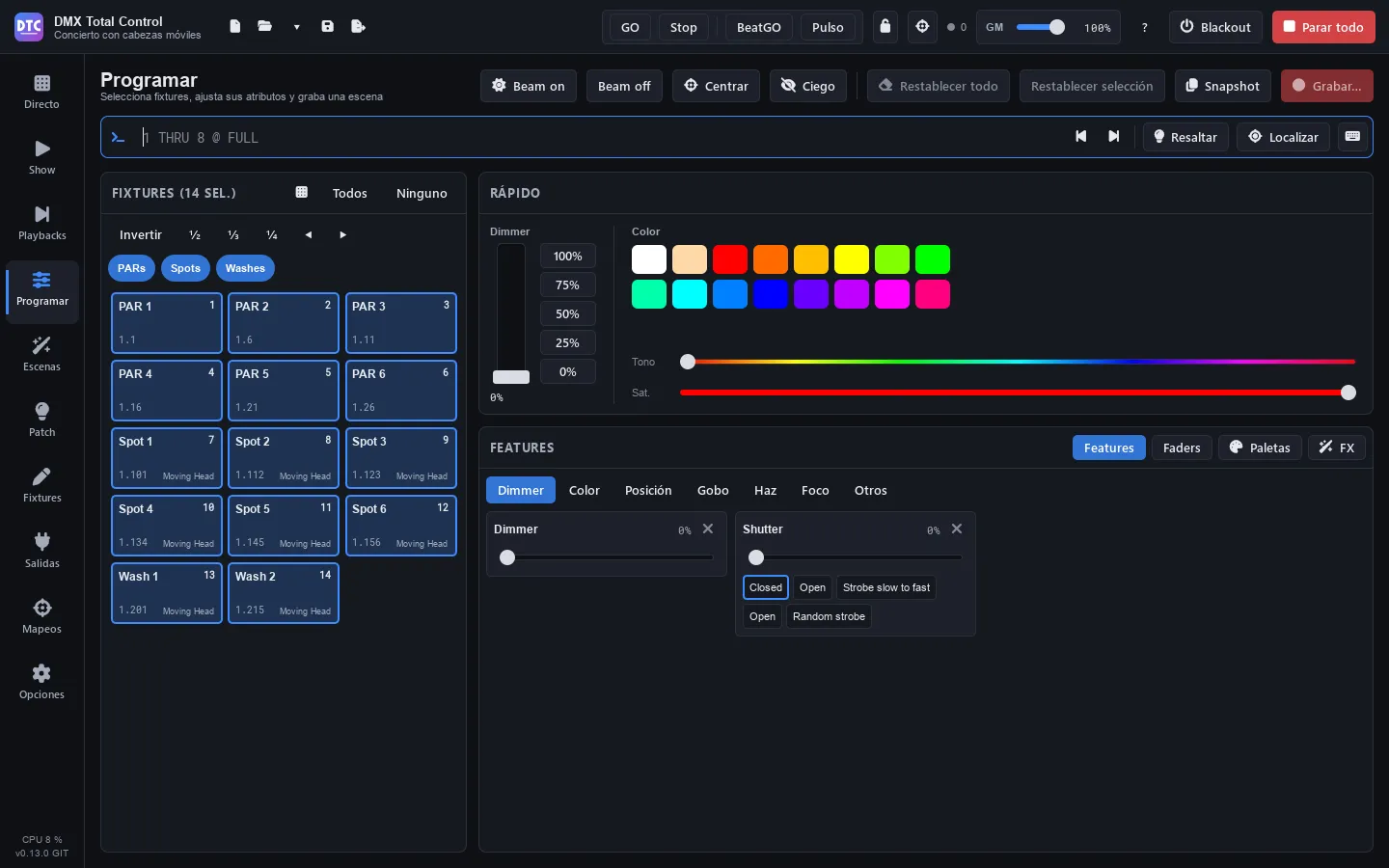
Program (F3) is the programmer: you select fixtures, give them dimmer, colour, position, gobos or any other channel, add FX and palettes, and record it all as a scene, a cuelist or a cue.
What you set in the programmer goes out at once and overrides everything (scenes, groups and playbacks) until you clear it. The page subtitle reminds you: “N channel(s) in the programmer — they override the playbacks until you clear them”.
From top to bottom, the page has: the header with its buttons, the command line, the fixtures panel on the left and, on the right, the Quick panel and the Features / Faders / Palettes / FX panel.
The header
Section titled “The header”- “Beam on”: dimmer at full and shutter open on the selection.
- “Beam off”: dimmer to zero on the selection.
- “Centre”: pan and tilt to the centre.
- “Blind”: see Blind.
- “Reset all”: releases all the live edits (values and FX). The scenes show again.
- “Reset selected”: releases only those of the selected fixtures.
- “Snapshot” and “Record…”: see Recording.
In a narrow window some buttons show only their icon; hover over them to see their name.
Selecting fixtures
Section titled “Selecting fixtures”The “Fixtures (N selected)” panel shows a tile for each fixture with its name, its number (for the command line), its address (universe.address) and its type.
- Click a tile: selects only that one.
- Ctrl+click: adds it to the selection or removes it. Shift+click: selects all the tiles from the last one you clicked to that one (in that direction, which is the order of the selection); Ctrl+Shift+click adds them.
- “All” and “None”, in the panel header.
- “Invert”: selects the ones that were not selected.
- ½, ⅓, ¼: keeps one of every two, three or four.
- ◀ ▶: shifts the selection to the left or to the right.
Order matters: the order in which you select the fixtures is the order that fans, FX and Colour FX follow. On the 2D plan each selected fixture shows its order number.
Tip: you can also select by typing:
1 THRU 8and Enter. See the command line.
Fixture groups and selections
Section titled “Fixture groups and selections”Above the tiles, the fixture groups of the Patch appear as round labels:
- Click a group: selects its fixtures. Ctrl+click or Shift+click: adds them.
- The label lights up when all its fixtures are selected. Hover over it to see its number for the command line (“GROUP 2 in the command line”).
- The selections of a group (ordered parts, with their icon) select their fixtures in their order.
- With many groups you see three rows of labels, which scroll with the wheel: “All the groups (N)” opens them (up to half the panel) and “Fewer” closes them. This keeps the fixture tiles in sight.
2D plan
Section titled “2D plan”The grid button in the panel header (“2D plan”) swaps the tiles for the stage plan:
- Click a fixture to select it; Ctrl+click or Shift+click adds it or removes it.
- Drag on the empty stage to select with a box. A click on an empty spot clears the selection.
- The wheel zooms; dragging with the right button or the middle one moves the view, and a double click with those buttons centres it again.
In Program the plan is always live: each fixture shows its colour, its dimmer, its strobe (it blinks) and its gobo, and every pixel of bars and matrices. Fixtures are placed on the 2D plan of the Patch.
The Quick panel
Section titled “The Quick panel”Dimmer
Section titled “Dimmer”The Dimmer fader and the 100%, 75%, 50%, 25% and 0% buttons give intensity to the selection.
Colour
Section titled “Colour”Click one of the 16 swatches, or move Hue and Sat. The colour is mixed on the RGB channels (the white part goes to the white channel if the fixture has one) or on the CMY channels of each fixture. For colour wheels, use their presets in Features › Colour.
Tip: for a dimmer fan, use the command line:
@ 0 THRU 100goes from 0 % on the first fixture to 100 % on the last one. The position fan is in Features › Position.
Features
Section titled “Features”Features shows the channels of the selection in tabs: Dimmer, Colour, Position, Gobo, Beam, Focus and Others. The tabs with no channels in the selection are disabled.
Each channel is a card with its name, its value in %, a slider and its presets as buttons (with their colour or the image of their gobo if the profile includes them). Click a preset to set it. The card is marked in orange when the channel is in the programmer; its × releases it.
Channels are grouped by function, not by name: “Red”, “R” or “Rojo” on different fixtures are the same control, and the same goes for dimmer, pan/tilt, CMY, colour wheel, gobo, shutter, iris, zoom, focus, prism… Each head of a bar keeps its own channels.
Colour: picker and favourites
Section titled “Colour: picker and favourites”In the Colour tab, the square on the left gives the hue (from side to side) and the saturation (from top to bottom). Drag the cross to place it, or drag somewhere else in the square for a fine adjustment.
Below it, “Favourites”: the + saves the current colour; a click on a favourite sets it; a right click removes it. Favourites work for all your shows.
Position: XY grid and fan
Section titled “Position: XY grid and fan”The Position tab only moves pan and tilt (with their fine channels, in 16 bits). Continuous pan or tilt rotation and its speed are in Others.
- Drag the cross to place it, or drag somewhere else on the grid for a slow, fine movement.
- The bar on the left is the tilt and the one at the bottom is the pan.
- With several fixtures, each one is a dot on the grid.
- “Centre” takes pan and tilt to the centre.
On the right is the Fan: it spreads the position of the selection, in its order, each fixture from where it was.
- “Open”: from one end to the other (the first to one side, the last to the other, the middle one still).
- “V”: the ends spread out and the centre stays still.
- “From the first”: the first one still and each one a bit more.
- Pan and Tilt: how much each one spreads (from −100 to 100 %; double click, to 0). At 100 %, the ends move half the grid.
- “No fan”: the fixtures go back to where they were.
- The “Fan” button under the grid makes dragging on the grid spread the fan instead of moving: sideways, the pan; up and down, the tilt.
If you then move the cross, the centre moves and the fan is kept. If the position changes some other way (a palette, another selection, “Reset all”), the fan goes back to 0 and starts again from wherever they are.
Follow: aiming at a point
Section titled “Follow: aiming at a point”The “Follow” button under the grid swaps the fan for a stage plan. Click or drag on it: all the selected moving heads aim at that point, each one with its own pan and tilt, and a line goes from each one to the point.
- “Height of the point”: 0 m is the floor; raise it to aim, for example, at the singer’s face (1.6 m).
- Each head works out its pan and tilt from its place on the plan, its height, whether it is hung or standing and which way it faces. All of that is set in Patch › 2D plan › “Height and facing”.
- When you drag, each head takes the short way from where it was aiming, without going the long way round.
- The values stay in the programmer like any other pan and tilt: record them in a scene, a cue or a palette.
- Below it, you see how many heads are aiming, which ones cannot reach (they stay as close as they can), which ones do not have their pan and tilt travel in their definition (540° and 270° are used) and the scanners, which do not move (their mirror does not follow this geometry).
- The inversions, the limits and the pan and tilt swap of the Patch are already taken into account.
If you move the cross, the fan or “Centre”, or change the selection, the point disappears.
Not tested with real fixtures: each manufacturer orients its heads in its own way. If one aims wrong, adjust its facing or set its pan or its tilt to turn the other way in “Height and facing”.
Faders
Section titled “Faders”Faders shows each channel of the selection as a vertical fader, with its name, its group and its value (0–255). The list button opens its presets (“Name (min–max)”) and the × releases it.
Tip: after you click a fader or a slider, the ↑ ↓ arrows move it one by one and PgUp / PgDn ten by ten. A double click returns it to its rest value (usually zero).
With “Blind” on, the programmer edits without sending anything to the lights: the stage keeps showing what is playing and you prepare the next look. The subtitle warns you: “Blind: the lights don’t show what you program”. You can record as usual. When you turn it off, what is in the programmer goes out.
Highlight and locate
Section titled “Highlight and locate”In the command line bar:
- “Highlight”: the selection at full in open white, over everything, to see which fixtures they are. It is not recorded. Press it again to remove it.
- “Locate”: sets the selection at full, in open white, centred and with the beam open, in the programmer (these values are recorded).
- ◀ ▶ (PREV / NEXT): goes through the selection one by one: only one fixture stays selected and you see which one you are on (“2/8”). “All” goes back to the whole selection (ALL).
Palettes
Section titled “Palettes”A palette stores an intensity, position, colour or beam value for each fixture. Scenes and cues recorded with a palette use it by reference: if you update the palette, they change by themselves (live edits too).
In Palettes there are four columns: Intensity, Position, Colour and Beam.
Recording a palette
Section titled “Recording a palette”- Select fixtures and give them the value (for example, a colour).
- In the Colour column, press “+ Record”.
The palette is created with a name and a number (“Colour 1”, COL 1). From then on, whatever you record with it follows it.
Using a palette
Section titled “Using a palette”Select fixtures and click the palette: it is applied to the selection. A palette is marked when it is set on the selection (brighter if it is set on all of it). On a fixture that was not recorded in the palette, it uses the values of another fixture of the same type or its attributes: a colour is mixed in RGB or CMY, or goes to the closest slot of the colour wheel.
You can also type COL 2, POS 1, BEAM 3 or INT 4 in the command line.
The palette menu
Section titled “The palette menu”Right click a palette:
- “Apply to the selection”.
- “Load its fixtures in the programmer”.
- “Update with the programmer”: adds or changes the values of the programmer in the palette. The scenes that use it change too.
- “Record over it”: records it again with only what is there now.
- “Rename…”, “Change its number…” and “Delete” (the scenes keep the values).
A link icon on the palette shows that there are scenes that use it; the hover text says how many.
Tip: palettes can be put in the SHOW (the “A palette” action), on the remote control and in a mapping, on their fixtures or on a group, as a live edit. Alt+click on a palette takes it to the SHOW.
An FX moves a parameter of the selection (the dimmer, the red, the zoom, pan and tilt together…) around its value in the programmer or, if it has no value, around what the scenes below send. It plays at once and is recorded with the scene.
In FX there are three areas: the parameters and the running FX on the left, the FX controls in the centre and the macros on the right.
Starting an FX
Section titled “Starting an FX”- Select fixtures.
- In Parameter, choose what to move. By default, the last parameter you touched is chosen. The ones that already have an FX on the selection carry the “FX” mark.
- Press “Start FX”, or click a macro.
- Adjust the controls: the FX changes live.
The FX controls
Section titled “The FX controls”- The figure or the mode (the drawing on the left): click it to choose another one. For pan/tilt there are 12 figures (circle, eight, square, triangle, diamond, pan line, tilt line, diagonal, leaf, lissajous, ballyhoo and cross). For the rest, 22 modes: the dotted line is the base value and the wave goes above it, below it or on both sides; modes 9 to 12 are for chases, with a step.
- Swing (from 0 to 250 %). On pan/tilt, “Swing pan” and “Swing tilt” separately.
- Speed, in BPM. ½ and ×2 halve or double it. “BPM of the show” makes it follow the show tempo (a BPM fader or dial in the SHOW, or a BPM or Tap mapping). Recorded in an FX scene, it follows instead the rhythm you tap by pressing the button of the scene, if it has one (Live). “Multiplier”: from ×¼ to ×8.
- Pan/tilt only: “Invert pan”, “Invert tilt”, “Backwards” and “Rotate” (0–359°).
FX timing
Section titled “FX timing”How the FX is spread over the fixtures:
- “Wave per X”: the shape is spread over X fixtures (or sets), each one a bit later.
- “Step per X”: one fixture (or set) after another, X at a time.
- “Grouping”: “Off”, “Every X”, “Blocks of X”, “Divide by X”, “Mirror” or “By group” (of fixtures).
- “Order”: “Selection”, “Reversed”, “Random” (with a button for another random order) or “By number”.
- “Wait”: time at the base after each run.
- “Phase”.
Below, an animated preview draws how each fixture moves.
Running FX, linking and stopping
Section titled “Running FX, linking and stopping”- “Running FX (N)” lists the FX of the programmer. A click selects their fixtures and their parameter; the × stops it.
- “Link”: linked FX share the speed and the timing, and stop together.
- “Stop” stops the FX of the chosen parameter; “Stop all the FX”, all of them.
“Reset all” also removes the FX from the programmer. “Stop all” in the top bar does not remove them: they are live edits.
Per-fixture FX
Section titled “Per-fixture FX”An FX is still a single one even if you change some of its fixtures. If you select only some of the fixtures of an FX and change the shape, the size, the direction (“Backwards”), the inversions, the rotation or the phase, the change belongs to those fixtures, on the same clock: they stay in sync with the others. The speed and the timing always belong to the whole FX.
- The panel warns you: “This FX is also on other fixtures…”.
- With all its fixtures selected, the change applies to the whole FX.
- If you select fixtures that were not in the FX, they join it. Two FX on the same parameter selected together merge into one, and each fixture keeps what it was doing.
- In “Running FX” you see how many have something of their own (“N own”).
- “Like the rest” removes what is their own from the selected fixtures: they go back to doing the same as the FX.
The mirror
Section titled “The mirror”If the fixtures that go backwards (or with their own inverted pan or tilt) are all in one half of the FX, each one follows the wave of its twin on the other side, so the wave also comes out mirrored. The panel shows it with “Mirror: …”.
An example with 6 beams in a circle with a wave:
- Select all 6, choose Pan / tilt, press “Start FX”, figure Circle and “Wave per X” at “All”.
- Select only the last 3 and turn on “Backwards”.
The last 3 turn backwards and follow the wave of the 3rd, the 2nd and the 1st: a synchronised mirror. If you set alternate ones backwards (2, 4 and 6) it is not a mirror: each one keeps its place in the wave.
FX macros
Section titled “FX macros”On the right, the built-in FX macros by category: Position (circle, circle wave, eight, ballyhoo, pan sweep, can-can, pan in mirror, square, triangle, leaf), Intensity (dimmer wave, chase, random, pulse, breathe, strobe, outside in), Colour (rainbow, red / blue, fire, cyan / magenta) and Beam (zoom, iris, focus). A click applies the macro to the selection.
“Save as a macro…” saves the FX of the programmer as a macro of your own, in “Mine”, for all your shows. Right click one of your macros: “Rename” or “Delete”.
Command line
Section titled “Command line”The command line works like the one on a console. When you open Program it takes the keyboard: type and press Enter. Next to it you see what it has done, or why it does not understand.
| Command | What it does |
|---|---|
1 THRU 8 |
Selects fixtures 1 to 8 (also 1 > 8 or 1 / 8). 8 THRU 1, in reverse order. |
1 + 3 - 2 |
Adds and removes. 1,3,5 is the same as 1 + 3 + 5. Starting with + 5 or - 5 changes the selection you already have. |
GROUP 2 |
Fixture group 2 (in the Patch order). GROUP 1 THRU 3: groups 1 to 3. |
ALL |
All the fixtures, in number order (after NEXT / PREV, it goes back to the whole selection). |
@ 50 |
Dimmer at 50 %. @ 5 is 50 % (a single digit means tens). |
@ FULL / @ OUT |
Dimmer at full or at zero. @ @ is also full. |
@ 0 THRU 100 |
Dimmer fan, from 0 % on the first to 100 % on the last. |
@ + 10 / @ - 10 |
Raises or lowers the dimmer by 10 %. |
POS 1, COL 2, BEAM 3, INT 4 |
Applies the position, colour, beam or intensity palette with that number. |
LOCATE |
Locate. |
HIGHLIGHT |
Highlight (toggles). |
NEXT / PREV |
One at a time through the selection. |
REL |
Releases the edits of the selection. |
CLEAR |
Clears the programmer. |
You can chain them: 1 THRU 4 @ FULL COL 2 selects, sets the dimmer at full and applies colour palette 2.
The words also work in Spanish: HASTA, GRUPO, TODO, LLENO, TOPE, CERO, INTENSIDAD, POSICION, COLOR, HAZ, LIMPIAR, RESALTAR, LOCALIZAR, SIGUIENTE, ANTERIOR, LIBERAR, IR, ATRÁS, GRABAR, ACTUALIZAR, ELIMINAR… and abbreviated: THR, FL, GRP (or G), CLR, LOC, HI, SIG, ANT, REL.
Cuelist commands
Section titled “Cuelist commands”They act on the selected cuelist: the one of the selected playback, the one you opened in Scenes or the last one you created.
| Command | What it does |
|---|---|
GO |
The next cue. |
BACK |
The previous cue. |
GO CUE 3 |
Jumps to cue 3. |
CUE 3 |
Loads cue 3 into the programmer (what the stage shows on it) to change it. |
REC |
Records the next cue. REC CUE 2.5 records cue 2.5 (between 2 and 3). |
UPD |
Updates the cue loaded in the programmer or, if there is none, the one that is playing. UPD CUE 4, cue 4. |
DELETE CUE 4 |
Deletes cue 4 and keeps the look of the next ones. |
PB 3 |
Selects playback 3 of the current page (and its cuelist). |
If a command stops halfway (for example, the palette does not exist), what it already did stays done and only the part that still needs fixing is left on the line.
History and on-screen keypad
Section titled “History and on-screen keypad”- ↑ ↓ go through the last commands.
- Esc clears the line (with the line empty, Esc is “Stop all”).
- The keypad button opens an on-screen keypad for touch screens, with numbers, THRU, @, FULL, OUT, GROUP, INT, POS, COL, BEAM, NEXT, PREV, ALL, LOCATE, CLR and the cuelist keys (CUE, the decimal point, REC, UPD, GO, BACK, DELETE, PB). It stays open while you choose fixtures.
Recording
Section titled “Recording”The “Record” window
Section titled “The “Record” window”Press “Record…”:
- In Record into, choose:
- “New scene”: a static scene or, if the programmer has FX, an FX scene with its base values and its FX.
- “New cuelist”: the programmer will be cue 1 of a new cuelist. With “Put it on the first free playback” ticked, it also appears in Playbacks.
- A cuelist that already exists: it is recorded as one of its cues. The selected cuelist is chosen by default.
- Type the Name (and, for a cue, the number in Cue: empty, the next one;
2.5goes between 2 and 3). - For a new scene or cuelist: “Add to group” (or “No group”) and “Priority (0-10)”.
- For a cue: “Only this cue (what it changes doesn’t go on to the next cues)” and “All the values (block cue)” (also the values that are equal to what it tracks, so that it looks the same whatever the previous cues do).
- Press “Record” (or “Record cue N”).
A cue stores only what the programmer changes compared with what the previous cues leave on stage. If the cue number already exists, it asks what to do: “Merge” (the programmer goes into the cue), “Replace” (the cue stores only what is in the programmer; it keeps its name and its times) or “Insert after” (a new cue between this one and the next one).
“Clear the programmer after recording” clears the programmer after each recording and update. The option is remembered.
Snapshot
Section titled “Snapshot”The “Snapshot” menu has:
- “Save the edits into a scene”: puts the values of the programmer into a static scene that already exists.
- “Everything on stage into a new scene…”: everything the lights show now (scenes, live edits and the mixer, without the grand master) becomes a new static scene, on every fixture that has light. If “Highlight” is on, you have to turn it off first (“Highlight off”).
- “Only the edits into a new scene…”.
Editing scenes and cues
Section titled “Editing scenes and cues”- A static or FX scene: from Live or Scenes, “Edit in the programmer” loads it into the programmer. Change what you want and, in Scenes, press “Save the programmer in this scene”.
- A cue: when you load it (double click the cue in Scenes, “Load”, or
CUE 3), a bar appears: “Editing cue 3 of “Song 1””. Change the values and press “Update ▾”: “Update cue 3 (the next cues follow)” or “Only this cue (the next cues keep their look)”. The × stops editing the cue (the programmer keeps its values).
Clearing the programmer
Section titled “Clearing the programmer”- “Reset all” (or
CLEAR): releases the whole programmer, values and FX. - “Reset selected” (or
REL): only the selected fixtures. - The × of a card or of a fader: only that channel.
What happens to the live edits when you play a scene, and their priority over the scenes, is decided in Options.