
First steps
The guide
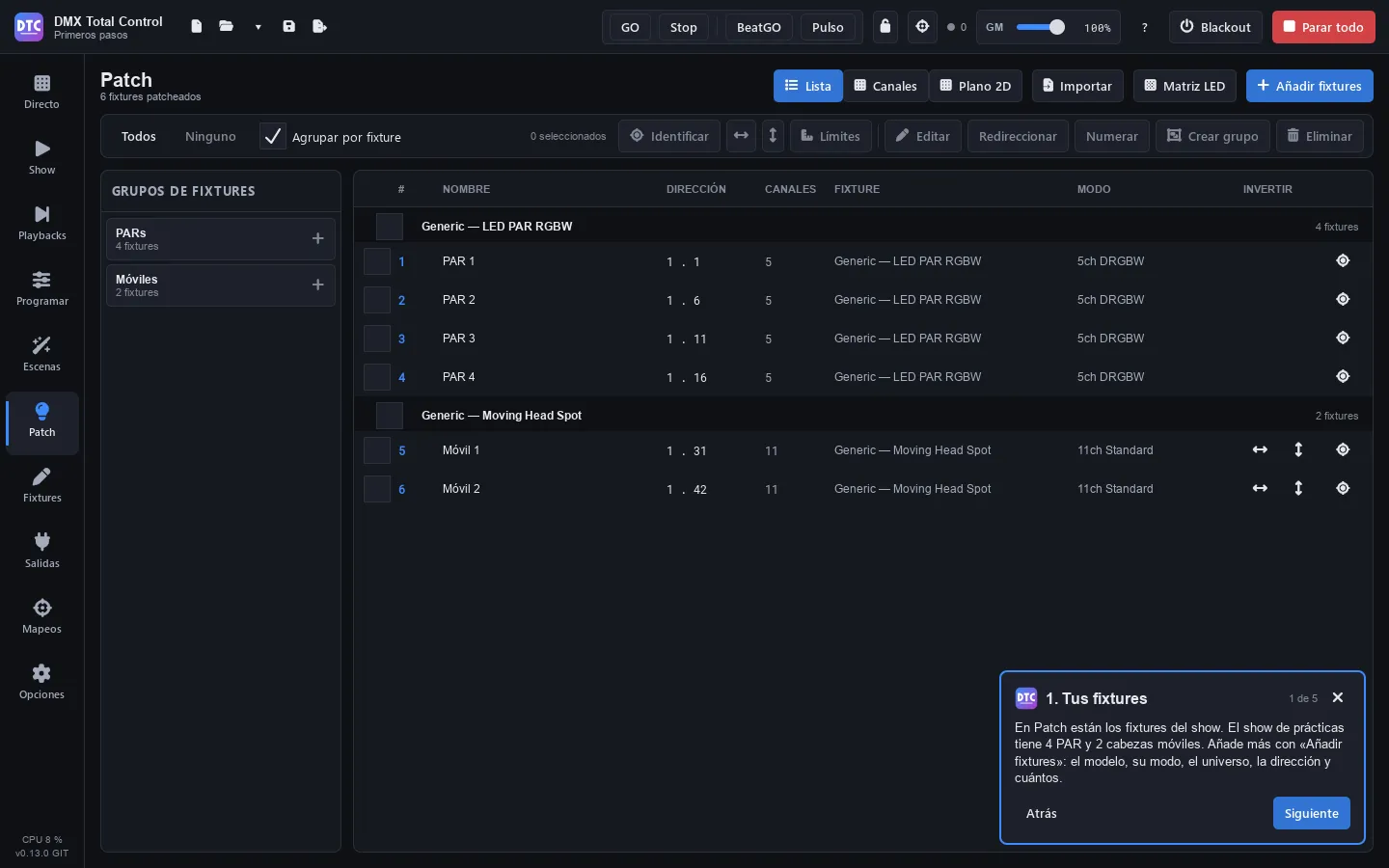
Section titled “The guide”The first time you open the program, the first steps guide appears: a card at the bottom right with five steps (your fixtures, a look, a scene, Live and the playbacks). “Next” and “Back” change the step and take you to the page of each one; you can use the pages while the card is open. You close it with the ✕ and open it again in Options › Help › “Start the guide”.
In the first step, “Open the practice show” opens the “Primeros pasos” example (if you have unsaved changes, it first asks whether to save them). It already has four RGBW LED PARs in the fixture group PARs, two moving heads in Móviles and the empty group “Mis escenas” in Live, ready for your scenes.
The complete session
Section titled “The complete session”In this first session you will go all the way: connect the output, patch some fixtures, build a look in the programmer, record it as a scene in a group, play it in Live, record a cuelist on a playback and save the show. It will take you about twenty minutes.
We will use fixtures from the generic library: four RGBW LED PARs and two moving heads. If you have other fixtures, look for their manufacturer and model instead of the generic ones.
Tip: you can follow this guide with no DMX interface connected. You can see the output in Outputs › “DMX levels” and on the 2D plan in Program.
Tip: with the practice show open you already have the fixtures and the group: skip to step 4 and use the fixture group
Móvileswhere this page saysHeads, and the group “Mis escenas” where it saysMy scenes.
1. Connect the output
Section titled “1. Connect the output”- Connect your DMX USB interface to the computer (or make sure the computer is on the same network as your Art-Net or sACN node).
- Open Outputs (F7).
- In the row of universe 1, open the drop-down that says “Not connected” and choose your interface.
- If it does not appear, press “Rescan”.
The connected universe is marked in green. You will find more details in Outputs.
2. Patch some fixtures
Section titled “2. Patch some fixtures”- Open Patch (F5) and press “Add fixtures”.
- In Manufacturer, choose Generic (you can type in “Search manufacturer…”).
- In Model, choose LED PAR RGBW.
- In the Patch panel on the right:
- Mode: “5ch DRGBW”.
- Quantity: 4.
- Universe: 1. The Address is set automatically to the first free one.
- Leave “Make a group with them” ticked and type the name
PARsin Group.
- Press “Patch 4 fixtures”. Below, you will see which addresses they use.
- Without closing the window, now choose Moving Head Spot, mode “11ch Standard”, quantity 2, group
Heads, and press “Patch 2 fixtures”. - Press “Close”.
Tip: set each fixture to the same DMX address that the Patch list shows. To find a fixture on stage, select it and press “Identify”: it blinks in white.
3. Create a group in Live
Section titled “3. Create a group in Live”Scenes are played in Live, organised in groups. Create one before recording:
- Open Live (F1) and press “New group”.
- Click the name of the column (“Group 1”), delete it, type
My scenesand press Enter. - In the crossfade time drop-down of the column (it says “By scene”), choose 2 s.
The group is “Exclusive”: only one scene plays at a time, and when you press another one it crossfades.
4. Build a look in the programmer
Section titled “4. Build a look in the programmer”- Open Program (F3).
- In the fixtures panel, click the label of the PARs group: all four are selected.
- In the Quick panel, press 100% next to the Dimmer fader.
- Click the red colour swatch.
The PARs light up in red as soon as you touch it: what you set in the programmer goes out at once, over everything else.
Tip: the same with the command line: type
GROUP 1 @ FULLand press Enter.GROUP 1is the first fixture group. See the command line.
5. Record the scene in the group
Section titled “5. Record the scene in the group”- Press “Record…” (top right).
- In Record into, leave “New scene”.
- In Name, type
Red. - In Add to group, choose My scenes.
- Press “Record”.
Record a second look: with the PARs selected and the dimmer at 100 %, click the blue swatch, press “Record…”, name Blue, group My scenes and “Record”.
Before going to Live, press “Reset all” to clear the programmer. While the programmer holds values, they override the scenes and you would not see what you play.
Tip: in the record window, tick “Clear the programmer after recording” and the programmer will clear itself every time you record. The option is remembered.
6. Play the scenes in Live
Section titled “6. Play the scenes in Live”- Open Live (F1).
- Press Red: the tile lights up with the colour of the group and the PARs go red.
- Press Blue: the group crossfades from red to blue in 2 seconds.
- Move the Master of the column to lower the intensity of the whole group.
- To release it, press the square in the column header (“Release this group”), or switch to Stop in the top bar, press Blue and go back to GO.
More in Live.
7. Record a cuelist on a playback
Section titled “7. Record a cuelist on a playback”Cuelists advance cue by cue with GO. The fastest way to create one is to record straight onto a playback.
- In Program, click the Heads label.
- Press “Beam on” (dimmer at full and shutter open) and “Centre” (pan and tilt to the centre).
- Open Playbacks (F10) and press “Record”: the button blinks in red.
- Click playback 1, which is empty: a new cuelist is created with cue 1.
- Go back to Program, open Features, the Position tab, and drag the cross of the XY grid somewhere else.
- In Playbacks, press “Record” and click playback 1 again: cue 2 is recorded, with only what has changed (the position).
- Go back to Program and press “Reset all”.
- In Playbacks, click the name of playback 1 to select it and press Space (or the big GO button): cue 1 plays. Press again: it goes to cue 2.
The playback fader is its intensity: if you raise it from zero, the cuelist starts. More in Playbacks.
8. Save the show
Section titled “8. Save the show”- Press Ctrl+S (or the floppy disk in the top bar).
- As it is the first time, choose a folder and a name: it is saved as a
.qxwfile.
From then on, Ctrl+S saves to the same file and keeps the version there was before the first save of each session as .bak. With autosave on (see Options), the program saves a recovery copy apart every few minutes, without touching your file: if it closes unexpectedly, it offers to recover the changes.